
Export the history
Download the intervention history to Excel or PDF; the PDF adds a summary with the number of compliant and non-compliant interventions and the compliance rate.
- Audience
- Everyone
- Screen
- History › Export button
- Verified version
- App 1.0.0
Goal
Hand the work history to someone who has no access to the application: the co-owners' meeting, a buyer, an insurer, a professional preparing a study or an attestation.
Audience
All building members.
Prerequisites
- Be on the History page, with at least one intervention displayed.
- (Optional) Filter and sort the list the way you want to hand it over (see Filter and search the history): the export reproduces exactly the list on screen.
Steps
-
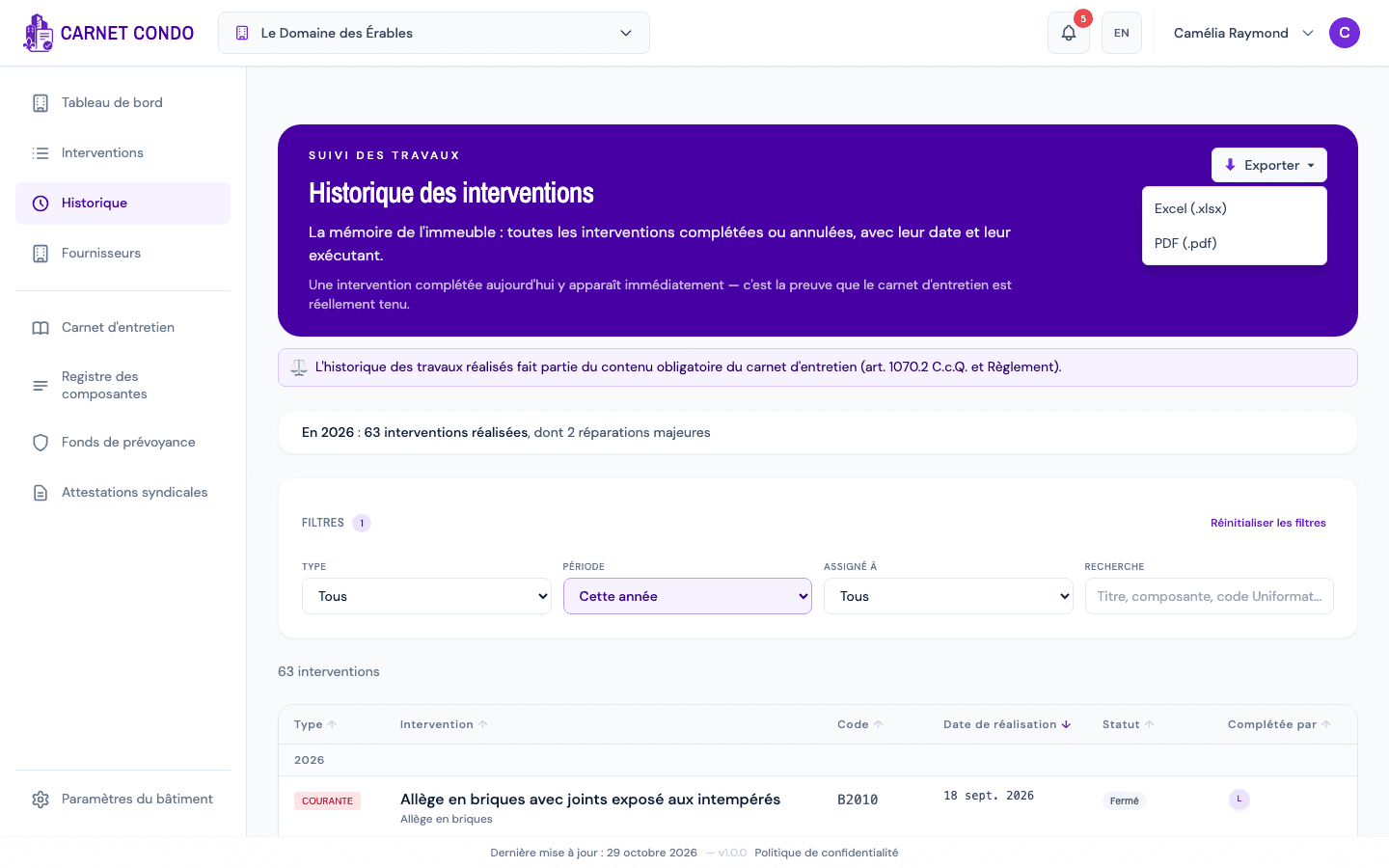
Click "Export" at the top right of the purple banner. A menu opens:
- Excel (.xlsx): all the data, to rework in a spreadsheet;
- PDF (.pdf): a report ready to print or send.
-
Choose the format. The file downloads under a name such as
historique_le-domaine-des-erables_2026-10-29-1452.pdf(building name, export date and time). -
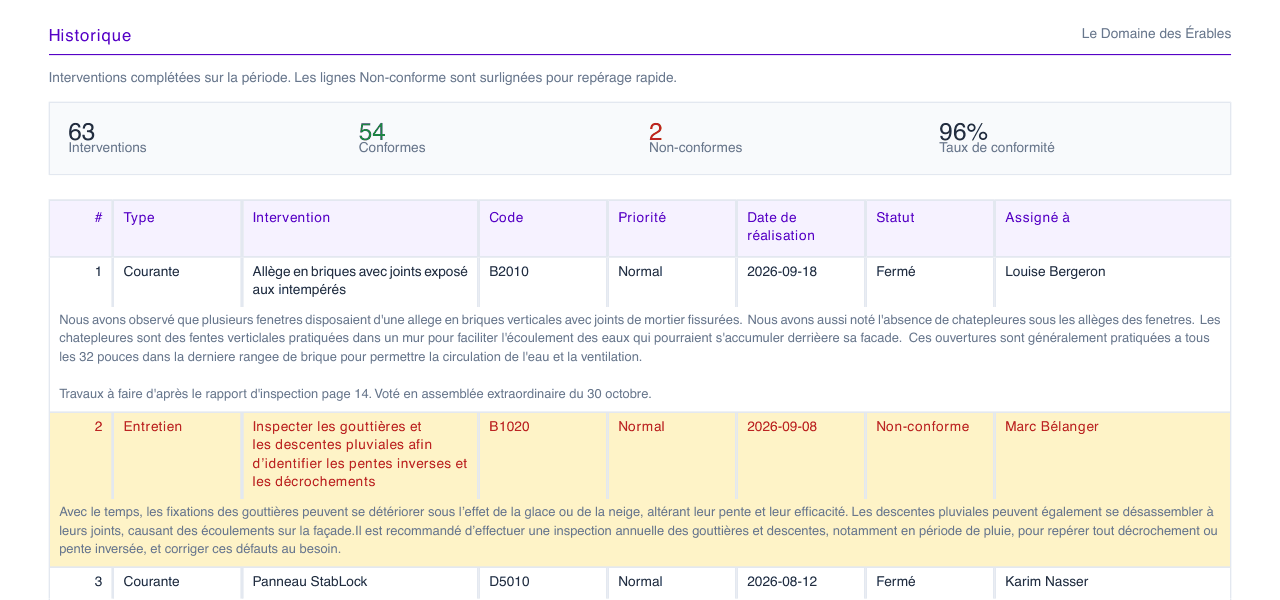
The PDF contains:
- a cover page: building, "History" tab, source section, export date, user and active filters (for example Period: This year);
- a summary: "Completed interventions over the period. Non-compliant rows are highlighted for quick scanning.", followed by four figures: Interventions, Compliant, Non-compliant and Compliance rate;
- the table, one row per intervention, with its description below; non-compliant interventions are highlighted in yellow.
How the compliance rate is calculated
The rate only counts maintenance work that is compliant or non-compliant: Rate = Compliant ÷ (Compliant + Non-compliant). A resolved non-compliance counts as compliant (see Resolve a non-compliance). Routine and major repairs and cancelled interventions are included in the Interventions total, but not in the rate. That is why Compliant + Non-compliant can be smaller than the total.
Tips and common errors
- Export button greyed out: the list is empty (tooltip "Nothing to export"). Remove some filters.
- The rate covers the filtered period: for the year's rate, first choose Period: This year, then export.
- "For the complete data, use the Excel export.": the PDF is a reading report; the Excel file contains every column.
- PDF columns: the PDF still shows "Priority" and "Assigned to" columns where the screen shows "Completed by".
See also
Filter and search the history
Narrow History down by type, by period (this year, last year), by person or by search, and read the year's summary.
View, filter and sort interventions
Open the Interventions page, filter by type, priority and assignee, search (including by Uniformat code) and sort the list of interventions.