
View, filter and sort interventions
Open the Interventions page, filter by type, priority and assignee, search (including by Uniformat code) and sort the list of interventions.
- Audience
- Everyone
- Screen
- Interventions page
- Verified version
- App 1.0.0
Goal
Find a intervention (also called an "occurrence") among all those in the building. The Interventions page lists upcoming and recent interventions; you can filter, search and sort them to focus on the ones that concern you.
Audience
All building members (everyone can read; available actions depend on your role).
Prerequisites
- Be signed in and have access to the building.
- Be on the Interventions page (sidebar).
Steps
-
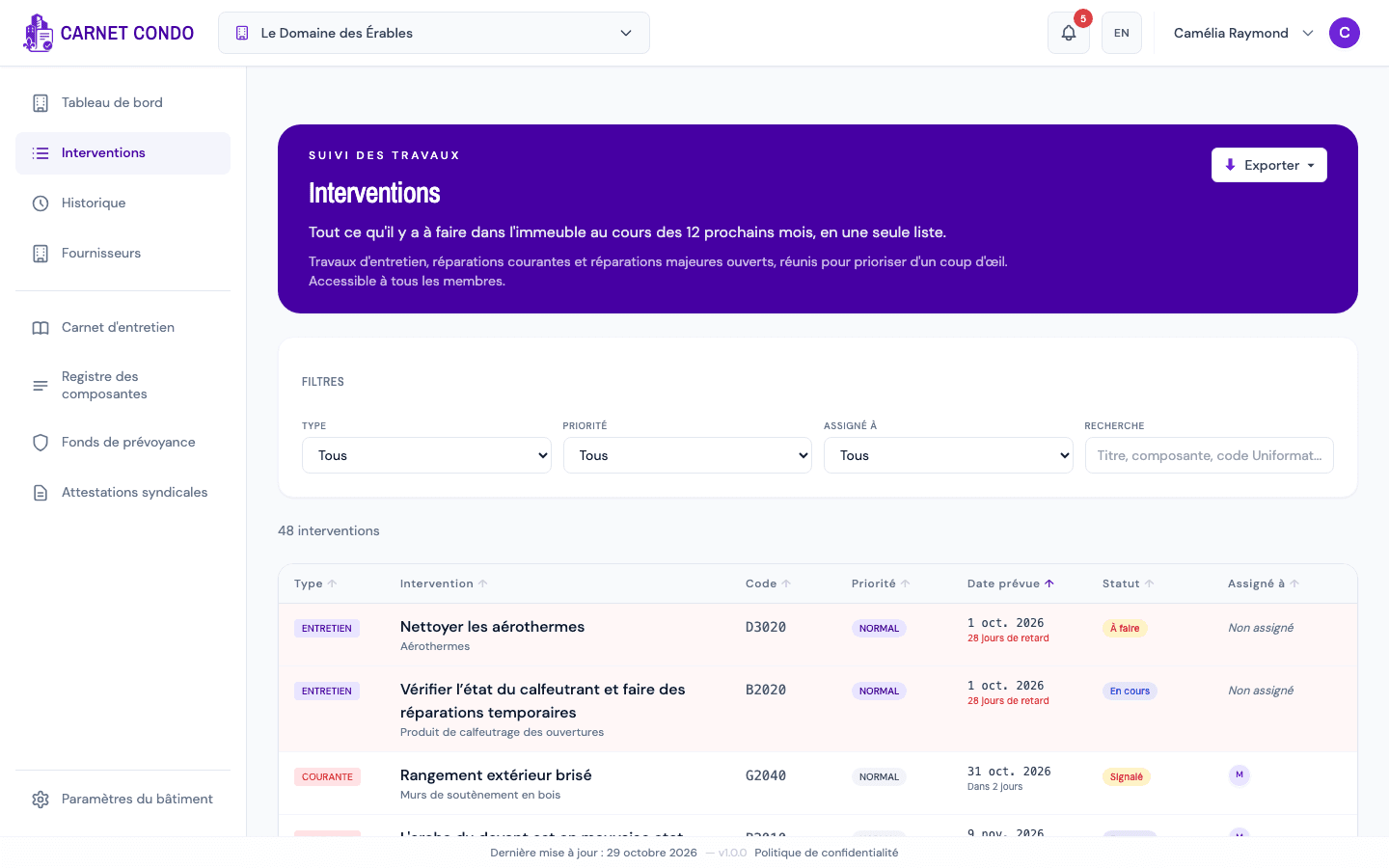
In the sidebar, open the Interventions page. It brings together, in a single list, everything to be done in the building over the next 12 months: maintenance work, routine repairs and major repairs. The "N interventions" count appears at the top.
-
Use the filter card to narrow the list:
- Type: All, Maintenance, Routine or Major.
- Priority: Urgent, Important, Normal or Low.
- Assigned to: All, My tasks, Unassigned, or a person.
- Search: title, component or Uniformat code.
-
To clear all applied filters at once, click "Reset filters". A badge shows the number of active filters.
-
Sort the list by clicking a column header: Type, Intervention, Code, Priority, Due date, Status or Assigned to. An ↑ / ↓ indicator shows the sort direction; click again to reverse it.
-
Click a row to open its record: a maintenance intervention opens the intervention's details; a routine or major repair opens its own repair record. When you close it, you return to the list.
Export the list
The Export button, at the top right of the page, offers Excel or PDF. The export uses the list exactly as it is filtered and sorted on screen.
Tips and common errors
- Filters and sort remembered: your filters, search and sort are kept for this building on this browser, even after opening a record or changing pages.
- On a phone: the filter card is collapsed (expand it to access it) and the table only shows the Intervention column, so sorting by column header is not available.
- 12-month horizon: the list shows an implicit horizon of about 12 months; an intervention far in the future may not appear.
- No results: if the message "No interventions match your filters." appears, click Reset filters to broaden the search.
See also
Export the history
Download the intervention history to Excel or PDF; the PDF adds a summary with the number of compliant and non-compliant interventions and the compliance rate.
View an intervention's details
Open an intervention's record and browse its five tabs: Information, Assignees, Attachments, History and Discussion.