
Mark an intervention compliant
Complete an intervention by moving it to the Compliant status; the completion date is set to today and any anomaly is cleared.
- Audience
- Administrator or assigned person
- Screen
- Intervention record, edit mode
- Verified version
- App 1.0.0
Goal
Declare that an intervention has been done and found compliant. Moving to the Compliant status closes the intervention.
Audience
Administrator of the building or a person assigned to the intervention.
Prerequisites
- Be an administrator or assigned.
- The intervention must not already be in a terminal status.
- Have switched the intervention to edit mode.
Steps
-
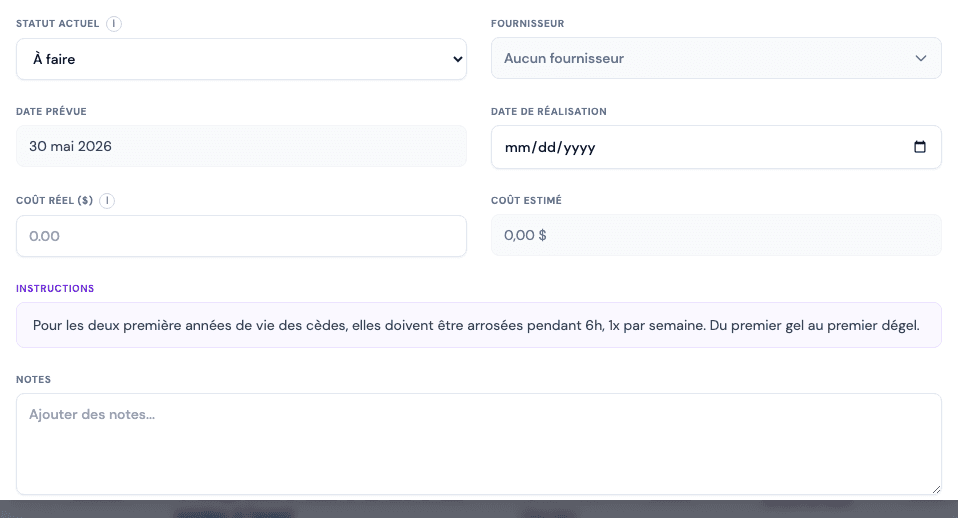
In edit mode, open the "Current status" menu and choose Compliant.
-
Optionally, record the completion (supplier, actual cost, notes) before saving.
-
Click "Save". The intervention shows a green Compliant badge.
When moving to Compliant, the app sets the completion date to today and clears any anomaly description that had been entered.
Compliant is a terminal status
Once Compliant, the intervention is locked. To reopen it or change its status, an administrator must use the override and log a reason for correction.
Tips and common errors
- Completion first: enter the supplier, cost and notes before saving; after locking, correcting them requires an override.
- Anomaly cleared: if you had described an anomaly and then switch to Compliant, that description is deleted.
- Handling error: if you picked the wrong status, an administrator can correct it via the override.
See also
Change an intervention's status
Change an intervention's status (To do, In progress, Delayed, Compliant, Non-compliant, Cancelled) from edit mode, with the administrator override rule.
Mark an intervention non-compliant
Move an intervention to the Non-compliant status and describe the anomaly found; the anomaly description is required.