
View an intervention's details
Open an intervention's record and browse its five tabs: Information, Assignees, Attachments, History and Discussion.
- Audience
- Everyone
- Screen
- Intervention record
- Verified version
- App 1.0.0
Goal
Review all the information about a intervention: its status, its scheduling, its assignees, its photos, its documents, its history and its discussion. The record brings everything together in five tabs.
Audience
All building members (read access).
Prerequisites
- Be signed in and have access to the building.
- Have located the intervention in the list of interventions.
Steps
-
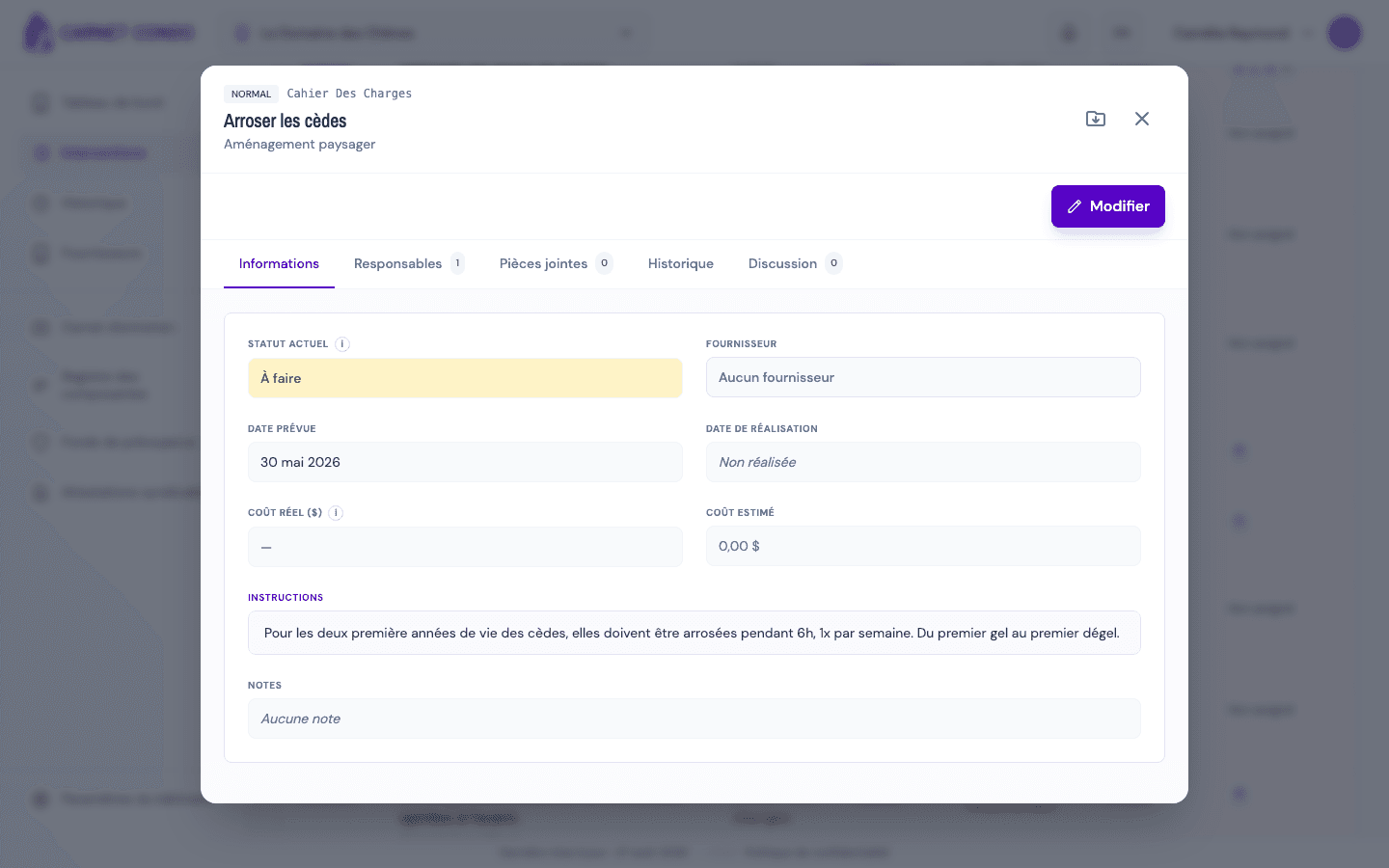
In the list, click an intervention. Its record opens over the list.
-
Read the header: priority, Uniformat code, component name, maintenance type and, where applicable, a Read-only badge.
-
Browse the five tabs (each shows a count badge where relevant):
- Information: status, supplier, dates, actual cost and completion notes.
- Assignees: the people assigned and the buttons to assign or remove yourself.
- Attachments: the Photos and Documents attached to the intervention, each with its count.
- History: the immutable change log.
- Discussion: the exchanges related to the intervention.
Export the details
The Export to PDF button (icon at the top right of the record) produces a PDF document of the intervention.
Tips and common errors
- Read-only: if the building's subscription is unpaid, a Read-only badge appears and all editing is blocked.
- Empty tabs: a tab with no content (Attachments, for example) shows an empty state; this is not an error.
- To make changes: reading is open to everyone, but changes go through edit mode, reserved for administrators and assigned people.
See also
View, filter and sort interventions
Open the Interventions page, filter by type, priority and assignee, search (including by Uniformat code) and sort the list of interventions.
Switch an intervention to edit mode
Turn on edit mode for an intervention from the intervention's record to change its status, completion, assignees or files.