
Assign or unassign yourself from an intervention
Assign or remove yourself from an intervention through the Assignees tab, choosing the scope: this intervention only or the entire maintenance task.
- Audience
- Everyone
- Screen
- Intervention record, Assignees tab
- Verified version
- App 1.0.0
Goal
Assign yourself to an intervention to become responsible for it, or remove yourself. If the task is recurring, you choose whether the action targets only this intervention or the entire task.
Audience
All authenticated building members.
Prerequisites
- Be signed in and have access to the building.
- Have opened the intervention's record.
Steps
-
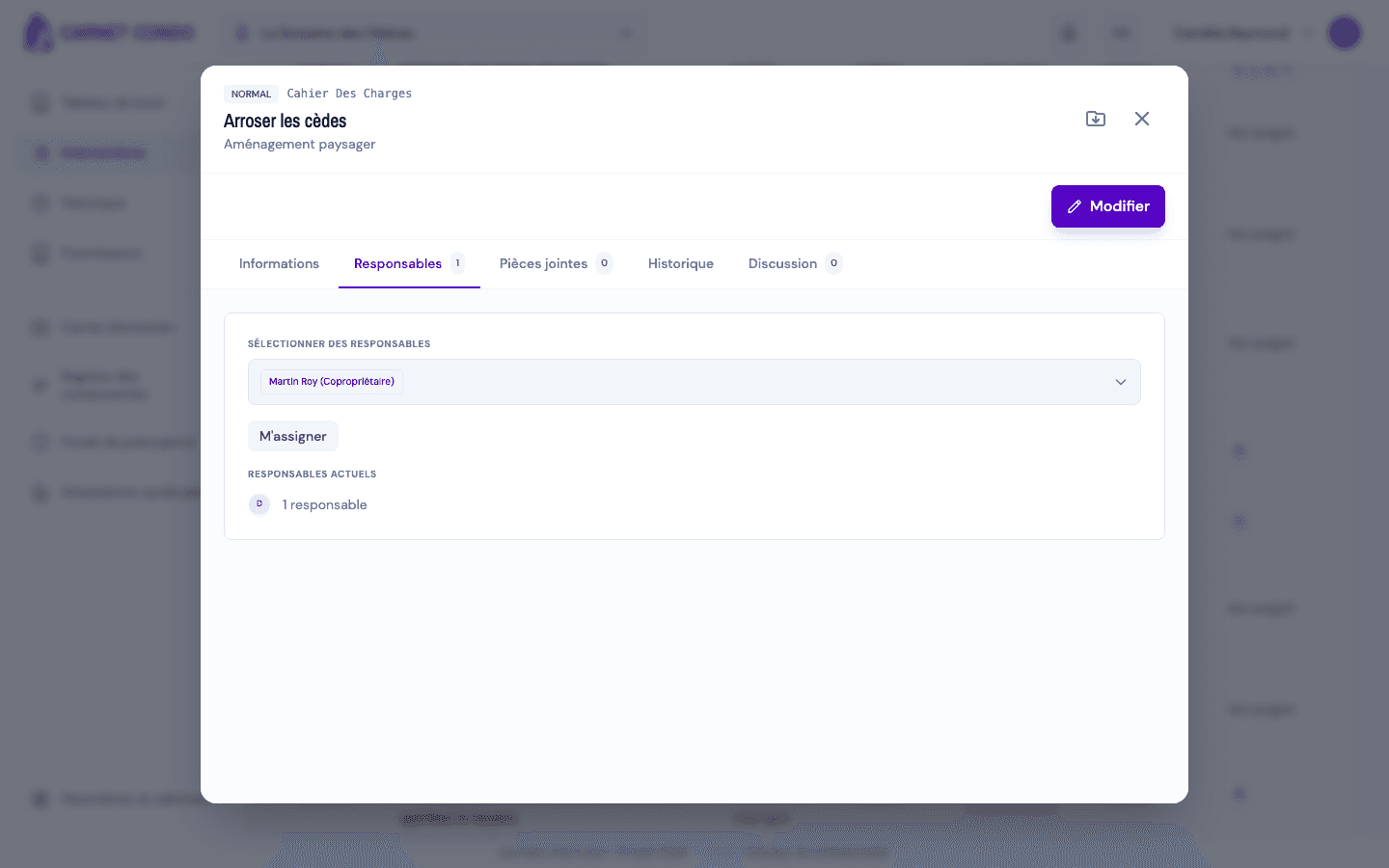
Open the Assignees tab. Click "Assign me" (or "Remove me" if you are already assigned).
-
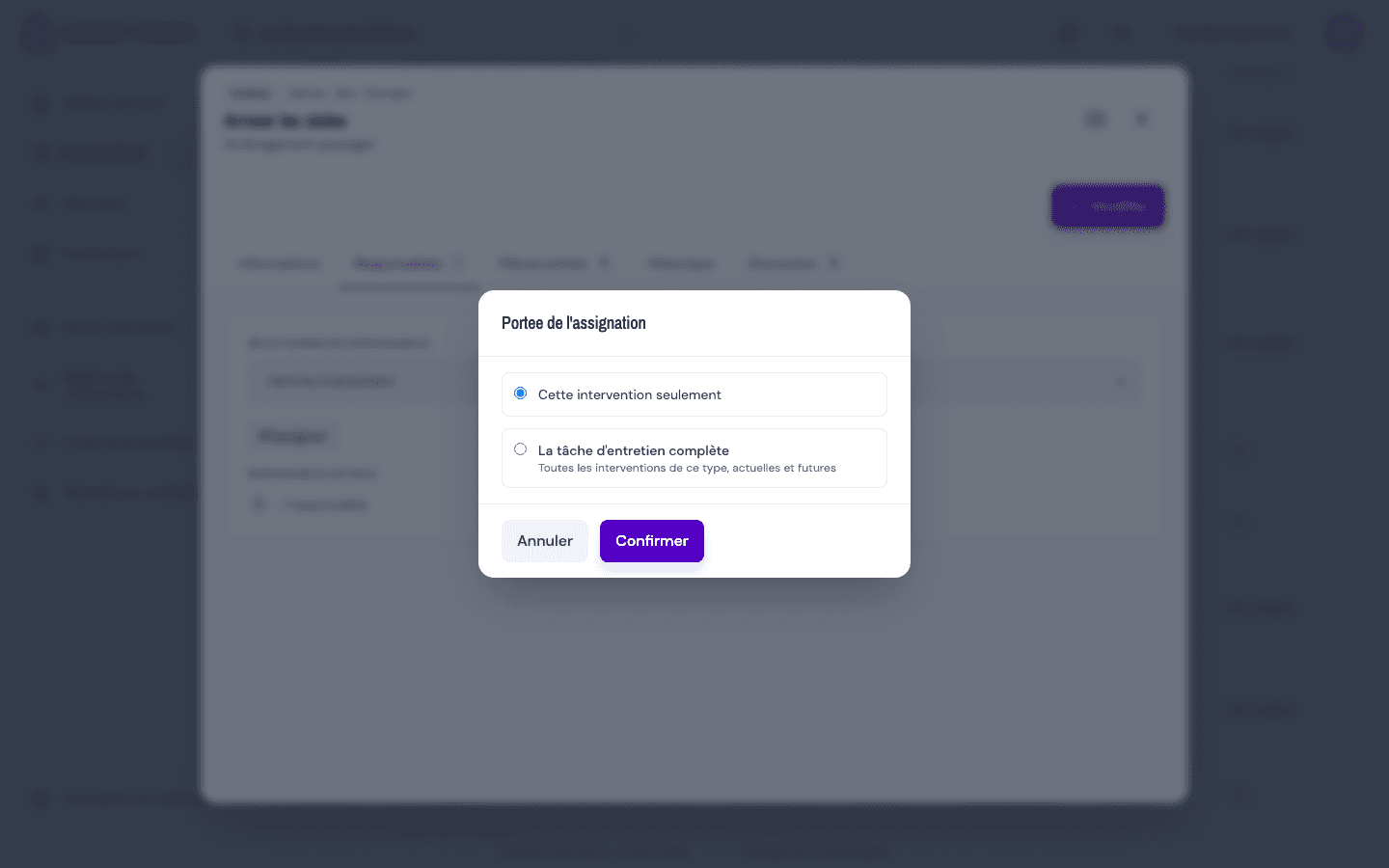
If the maintenance task is recurring, a scope choice window opens.
-
Choose the scope:
- This intervention only (default): the action affects only the open occurrence.
- The entire maintenance task (whether you're assigning or removing yourself): the action applies to all interventions of this type, current and future.
-
Click "Confirm".
Task scope only affects upcoming interventions
Choosing the entire maintenance task applies the assignment to future interventions still To do; interventions already completed are not changed.
Tips and common errors
- No scope window: the window appears only if the maintenance task is still live (recurring and active); otherwise the action targets only the occurrence.
- Partially applied action: an "Action partially applied" message may indicate that some interventions could not be changed; check the remaining assignees.
- Reassignment by an administrator: an administrator can reassign a task's default assignees, which overrides future assignments.