
Add and view photos and documents
Attach and view photos and documents on an intervention, through the Attachments tab of its record.
- Audience
- Administrator or assigned person
- Screen
- Intervention record, Attachments tab
- Verified version
- App 1.0.0
Goal
Attach photos (before/after, proof) and documents (reports, invoices, warranties) to an intervention, and view them afterward. Everyone can see them; only administrators and assigned people can add or delete them.
Audience
Administrator of the building or a person assigned to the intervention (to add or delete). Viewing is open to everyone.
Prerequisites
- To add or delete: be an administrator or assigned and have turned on edit mode.
- To view: have opened the record.
Steps
-
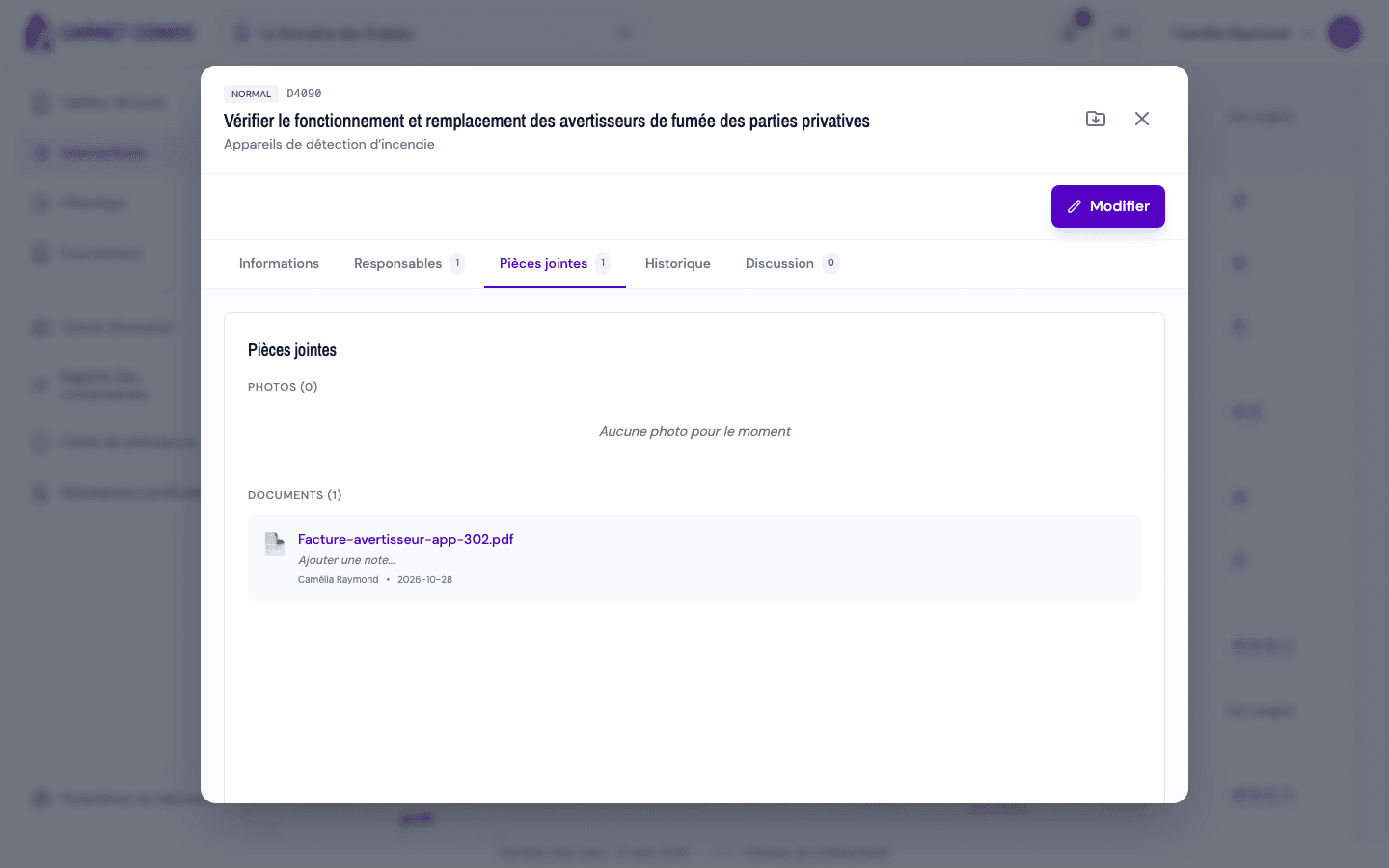
Open the Attachments tab. It contains two sections, Photos (N) and Documents (N). In reading mode, the photos appear in a grid; in edit mode, an upload area appears.
-
To add, drag and drop your files or use the file picker.
-
Further down, the Documents section shows the files in a list, with an optional note per document.
-
To delete an item, hover over it and use the delete action (reserved for those who can edit).
Uploading is immediate
Files are uploaded immediately as soon as you drop them: the Save button only closes edit mode; it is not needed to keep a file that has already been added.
Tips and common errors
- HEIC photos: images in HEIC format (iPhone) are converted automatically for display.
- Deletion restricted: only someone who can edit the intervention can delete a photo or a document.
- Document note: use the optional note to specify the nature of the file (invoice, warranty, report, and so on).