
Change an intervention's status
Change an intervention's status (To do, In progress, Delayed, Compliant, Non-compliant, Cancelled) from edit mode, with the administrator override rule.
- Audience
- Administrator or assigned person
- Screen
- Intervention record, edit mode
- Verified version
- App 1.0.0
Goal
Move an intervention's status forward as the work progresses. The status follows a state machine: some transitions are reserved for administrators.
Audience
Administrator of the building or a person assigned to the intervention.
Prerequisites
- Be an administrator or assigned.
- Have switched the intervention to edit mode.
The statuses
- To do: scheduled intervention, not started.
- In progress: work has begun.
- Delayed: postponed beyond the due date.
- Compliant: done and compliant (terminal status).
- Non-compliant: done but an anomaly was found (terminal status).
- Cancelled: dropped (terminal status).
Steps
-
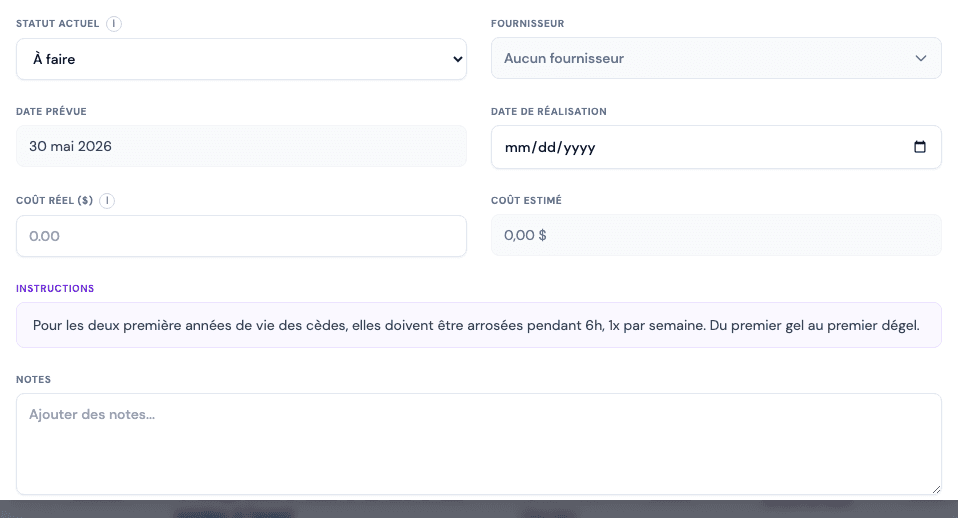
In edit mode, open the "Current status" menu.
-
Choose an allowed status:
- An assigned person sees the normal transitions.
- An administrator sees every status, including the override ⤺ to reopen a terminal status.
-
If you choose Non-compliant, an anomaly area appears (see Mark an intervention non-compliant).
-
If you force an override, fill in the "Reason for the correction" (required).
-
Click "Save".
Terminal statuses and override
The Compliant, Non-compliant and Cancelled statuses are terminal: they lock the intervention. Only an administrator can reopen them via the override, by logging a reason for correction.
Tips and common errors
- Anomaly required: moving to Non-compliant requires an anomaly description; without it, saving is refused.
- Reason for correction: an override without a reason is blocked; the reason is kept in the history.
- Transition unavailable: if a status does not appear, that transition is not allowed for your role from the current status.
See also
Switch an intervention to edit mode
Turn on edit mode for an intervention from the intervention's record to change its status, completion, assignees or files.
Mark an intervention compliant
Complete an intervention by moving it to the Compliant status; the completion date is set to today and any anomaly is cleared.