
View the change history
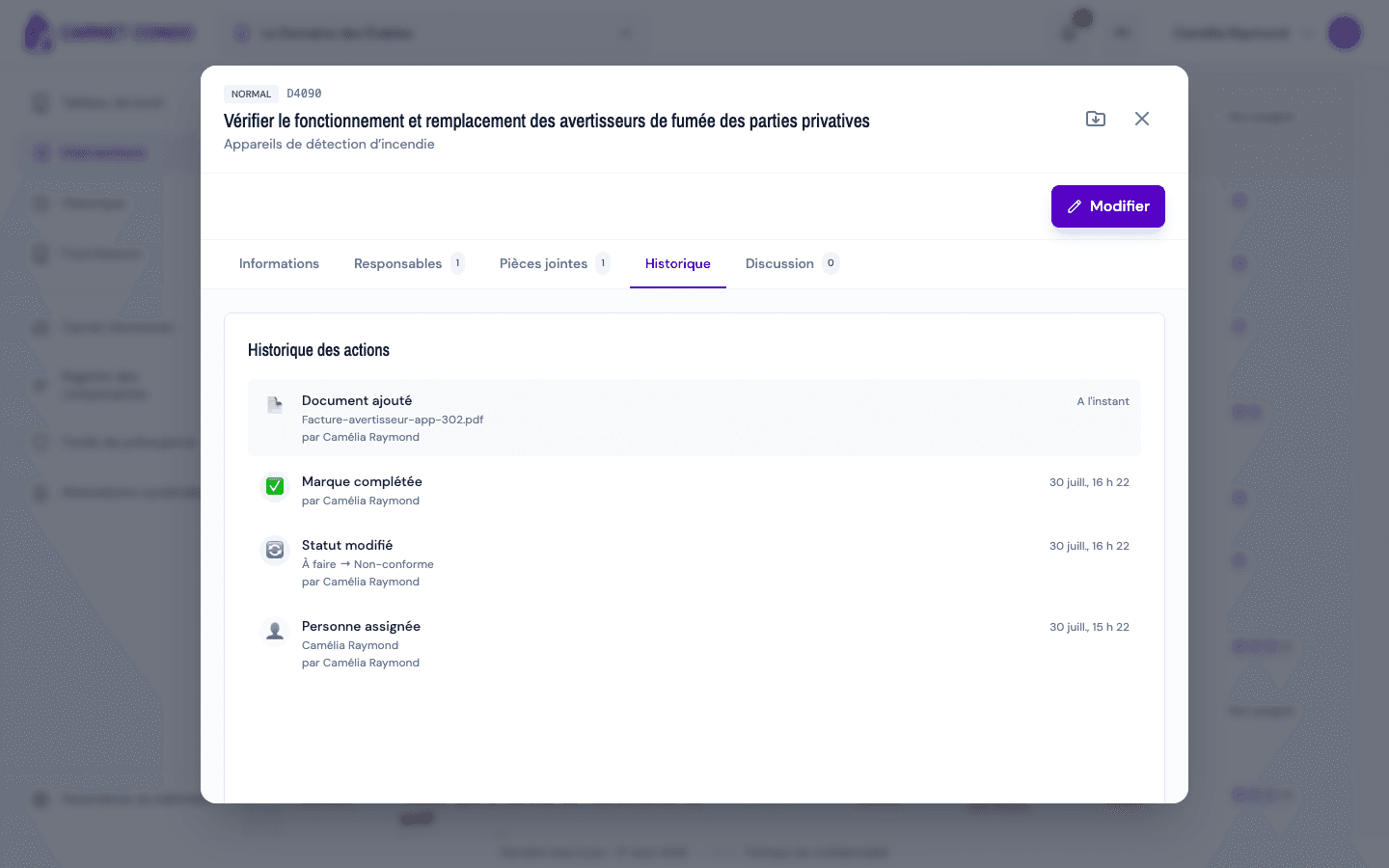
Read the immutable change log of an intervention in the History tab of the intervention's record.
- Audience
- Everyone
- Screen
- Intervention record, History tab
- Verified version
- App 1.0.0
Goal
Trace everything that has happened to an intervention: who did what and when. The History tab is an immutable audit log that documents every change.
Audience
All building members (read-only).
Prerequisites
- Be signed in and have access to the building.
- Have opened the intervention's record.
Steps
-
In the intervention's record, open the History tab. The list loads and appears in reverse-chronological order (most recent at the top).
-
For each entry, read:
- the actor (the person) or "System" for an automatic action;
- the translated action: created, status changed, assigned, photo added, and so on;
- the relative time (for example "2 days ago").
A log that cannot be changed
The history is immutable: entries can neither be edited nor deleted. That is what makes it a reliable audit trail for the building.
Tips and common errors
- Loaded on first click: the history loads when you open the tab; a brief wait is normal.
- No activity: if nothing has been recorded yet, the tab shows "No activity recorded".
- System actions: entries marked "System" correspond to automatic actions (generation, reminders, recalculations), with no human actor.
See also
Add and view photos and documents
Attach and view photos and documents on an intervention, through the Attachments tab of its record.
Assign or unassign yourself from an intervention
Assign or remove yourself from an intervention through the Assignees tab, choosing the scope: this intervention only or the entire maintenance task.