
Switch an intervention to edit mode
Turn on edit mode for an intervention from the intervention's record to change its status, completion, assignees or files.
- Audience
- Administrator or assigned person
- Screen
- Intervention record
- Verified version
- App 1.0.0
Goal
Turn on edit mode for an intervention to make its fields editable: status, supplier, dates, cost, notes, photos and documents. Without this mode, the record stays in reading mode.
Audience
Administrator of the building or a person assigned to the intervention.
Prerequisites
- Be an administrator or assigned to the intervention.
- The building must not be read-only.
- Have opened the intervention's record.
Steps
-
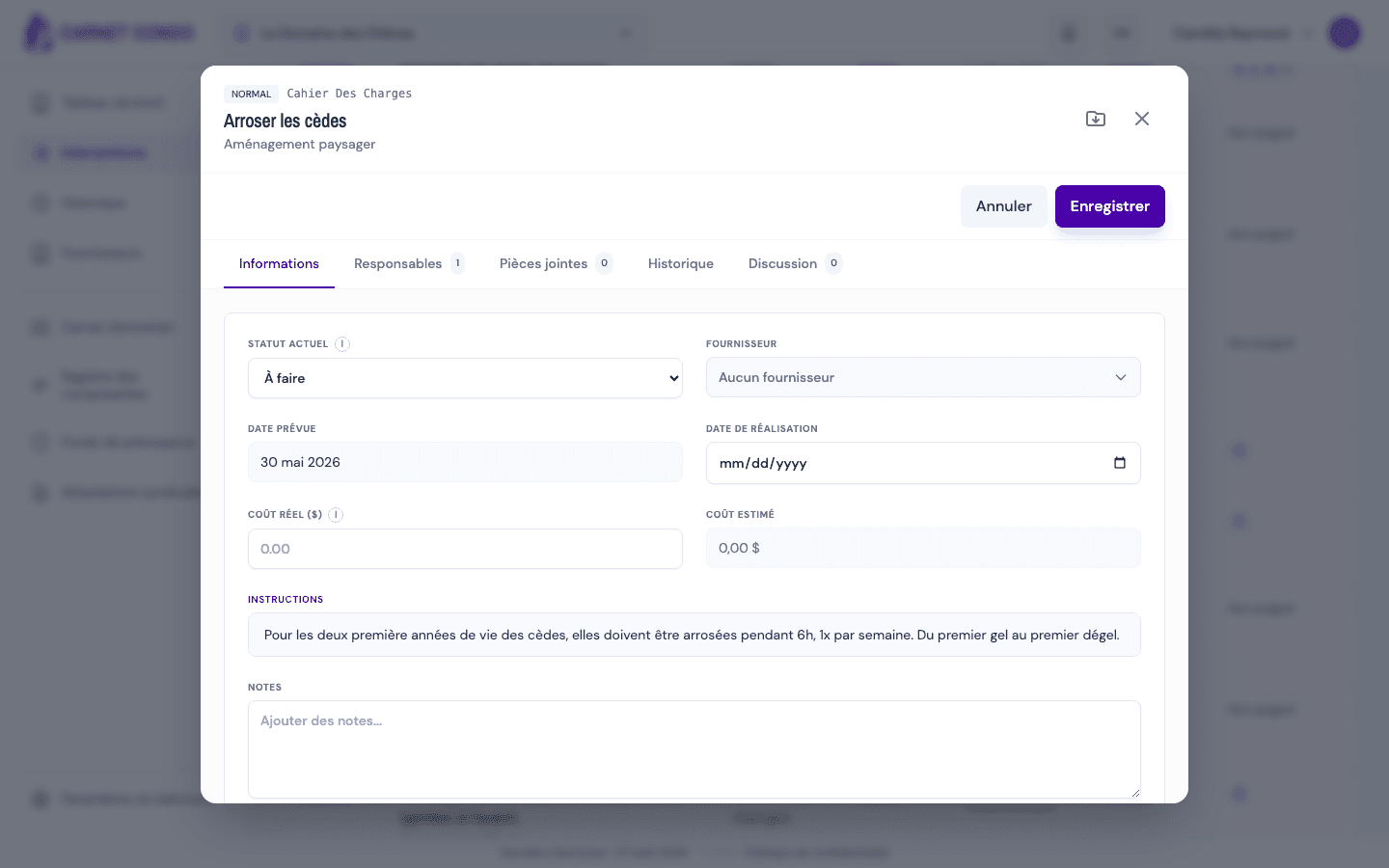
In the intervention's record, click "Edit".
-
At the top of the record, the Edit button is replaced by Cancel and Save, and the fields become active.
-
Make your changes (status, completion, assignees, files, and so on).
-
Click "Save" to confirm, or "Cancel" to discard.
Unsaved changes
If you leave the record without saving, an "unsaved changes" dialog asks you to confirm. Save before closing so you don't lose anything.
Tips and common errors
- Button missing: if you are neither an administrator nor assigned, the Edit button does not appear and a Read only badge is shown.
- Read-only: a read-only building (unpaid subscription) disables editing, even for an administrator.
- Immediate upload: adding photos and documents happens immediately, independently of the Save button. See Add and view photos and documents.
See also
View an intervention's details
Open an intervention's record and browse its five tabs: Information, Assignees, Attachments, History and Discussion.
Change an intervention's status
Change an intervention's status (To do, In progress, Delayed, Compliant, Non-compliant, Cancelled) from edit mode, with the administrator override rule.