
View the intervention history
Open the History tab of the menu: every completed, cancelled or postponed intervention in the building, grouped by year, with its completion date and the person who completed it.
- Audience
- Everyone
- Screen
- Menu › History
- Verified version
- App 1.0.0
Goal
See everything that was done in the building, in one place: maintenance work, routine repairs and major repairs. It is "the building's memory", and the proof that the maintenance logbook is actually kept.
Three different "History" views
The word "History" means three things in the application:
- The History tab of the menu (this page): every finished intervention in the whole building, all families together.
- The History tab of a maintenance task's record: the finished interventions of a single task (see Track a task's interventions). A component's record also has a History tab, limited to that component.
- The History tab of an intervention's or a repair's record: the change log of that record (who changed what, and when); see View the change history.
Audience
All building members. The History tab is visible to everyone, administrators and members alike.
Prerequisites
- Be signed in and have access to the building.
Steps
-
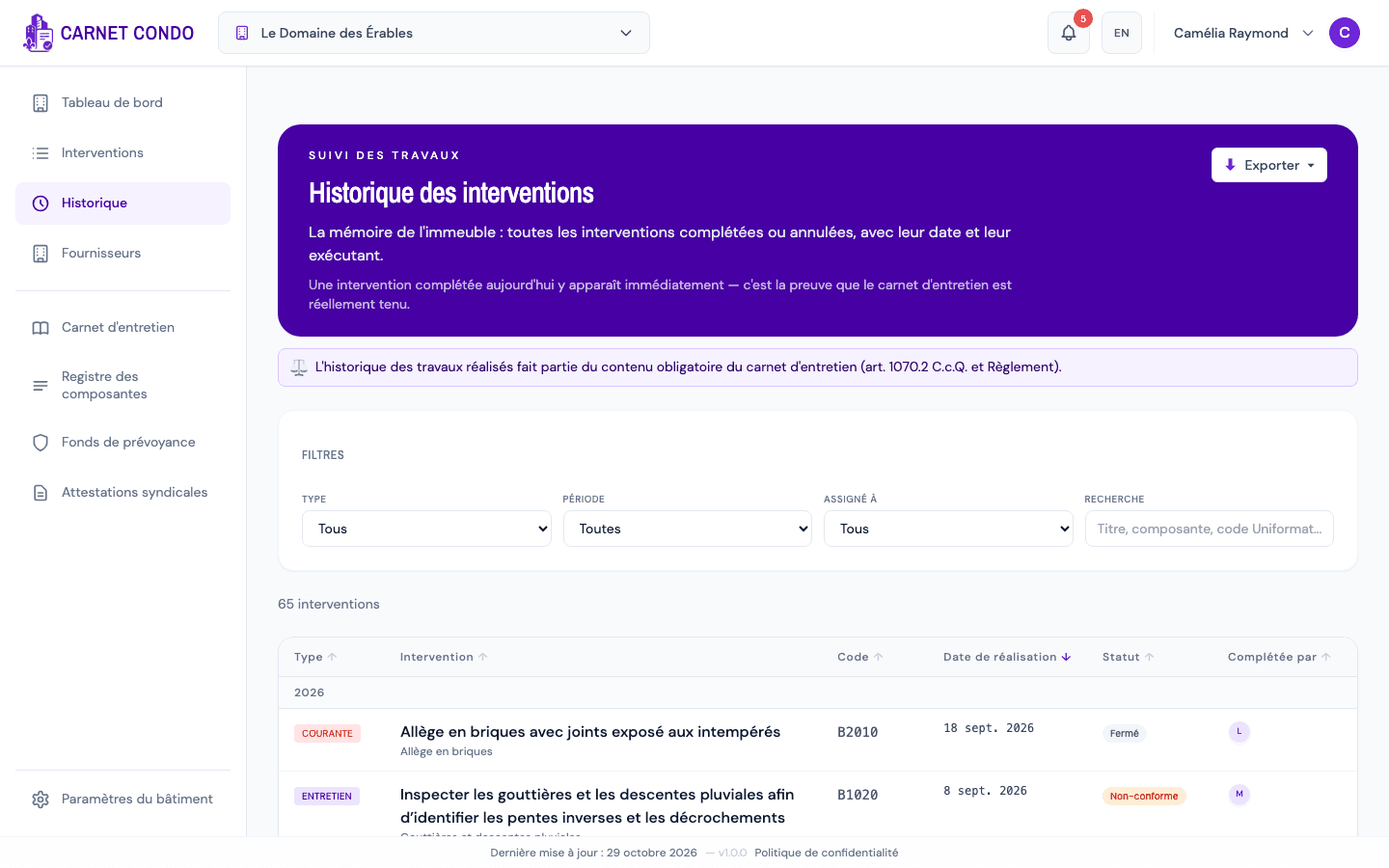
In the left menu, click "History" (below Dashboard and Interventions). The "Intervention history" page opens, with the line: "The building's memory: every completed or cancelled intervention, with its date and who did it."
-
Below the filters card, the counter shows how many interventions are displayed (for example "65 interventions").
-
Read the table. By default it is sorted by completion date, newest first, and a grey row separates each year (2026, 2025…). Each row shows:
- Type: Maintenance, Routine (routine repair) or Major (major repair or replacement);
- Intervention: the title, with the component below;
- Code: the component's Uniformat code;
- Completion date: the date the intervention was done ("—" if it was not entered);
- Status: the final status (see the table below);
- Completed by: for maintenance, the person who completed the intervention ("Not recorded" if the application does not know); for a repair, its assignees.
-
Click a column header to sort differently; click again to reverse (↑ / ↓). The year separators only appear when sorting by date.
-
Click a row to open its record: maintenance opens the intervention's details; a repair opens its routine or major repair record. When you close it, you are back in History.
What ends up in History
| Type | Statuses found in History | Date shown |
|---|---|---|
| Maintenance | Compliant, Non-compliant, Resolved (non-compliance fixed), Cancelled | Completion date |
| Routine | Closed | Completion date (otherwise the planned or reported date) |
| Major | Completed, Postponed | End-of-work date; for a postponement, January 1 of the postponement year |
An intervention that is not finished (To do, Assigned, In progress, Overdue…) stays on the Interventions page. It moves to History as soon as it is completed.
Tips and common errors
- An overdue intervention is not in History: overdue does not mean done. It stays in Interventions until it is completed.
- A postponed major repair appears in History, dated January 1 of the year it was postponed to: it can therefore show up under a future year.
- Date "—": the intervention was closed without a completion date. Open it and fill in the completion (see Record the completion).
- "No interventions yet.": nothing has been completed in this building yet.
- On a phone: the table only shows the Intervention column; type, status, date and person appear below the title. Sorting by header is not available.
- The banner states the law: "The history of completed work is part of the mandatory content of the maintenance logbook (art. 1070.2 C.c.Q. and Regulation)."