
Track a task's interventions (Upcoming and History)
In a maintenance task's record, view scheduled interventions (Upcoming tab) and finished ones (History tab), spot overdue items and open an intervention.
- Audience
- Administrator
- Screen
- Task record › Upcoming and History tabs
- Verified version
- App 1.0.0
Goal
See all the interventions of one maintenance task: those still to do and those already finished. It is the fastest way to check that a task is followed year after year.
Audience
Building administrator.
Prerequisites
- The task exists in the logbook (see View the maintenance work list).
Steps
-
Open Maintenance logbook › Maintenance work and click the task. Its record opens.
-
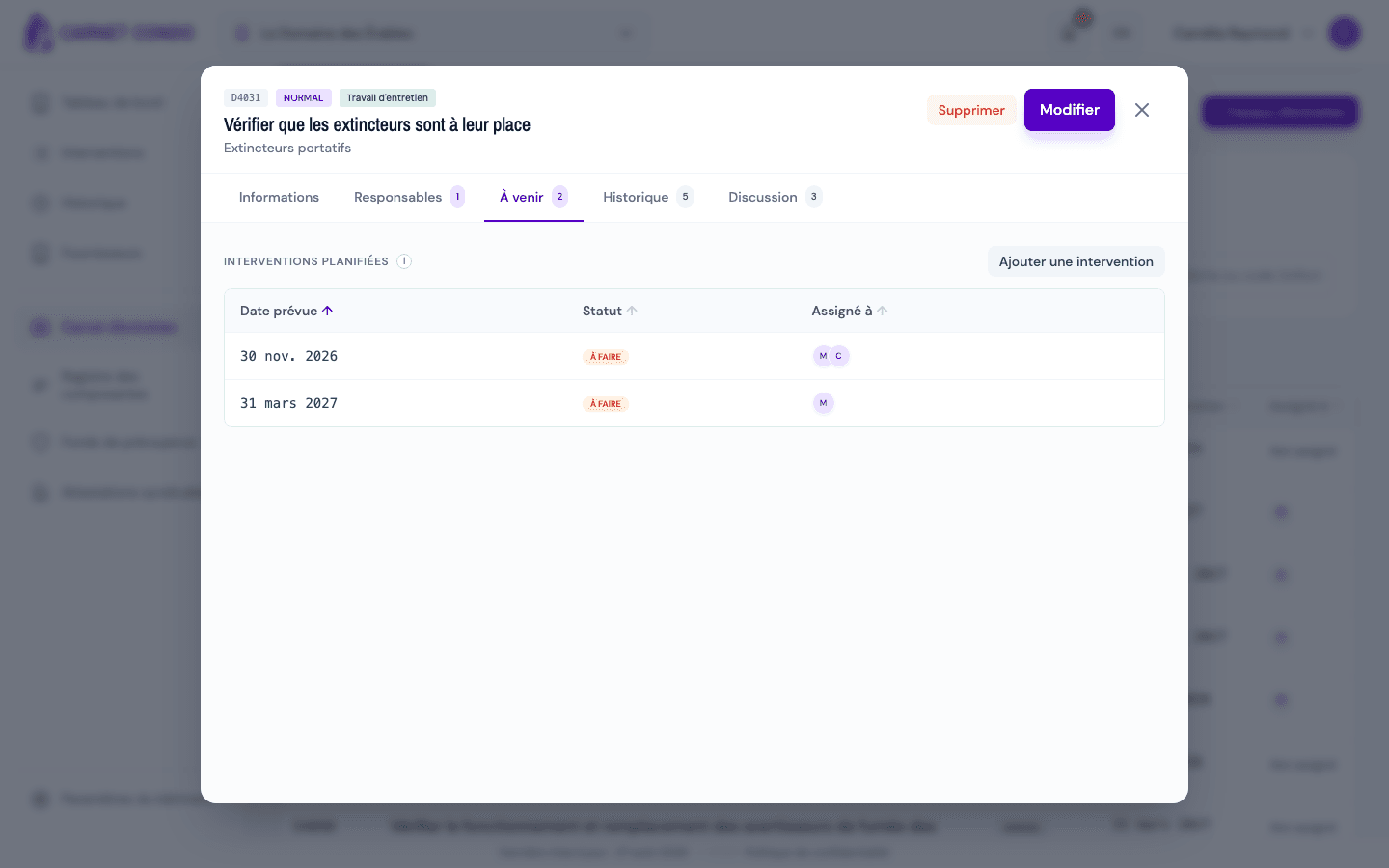
Open the "Upcoming" tab (the number shows how many interventions are open). The "Scheduled interventions" section lists each intervention with:
- Scheduled date (in red with "Overdue" if it is past);
- Status;
- Assigned to;
- for an administrator, a reminder column: the "Reminder" button appears on an overdue intervention, with the date of the last reminder sent.
-
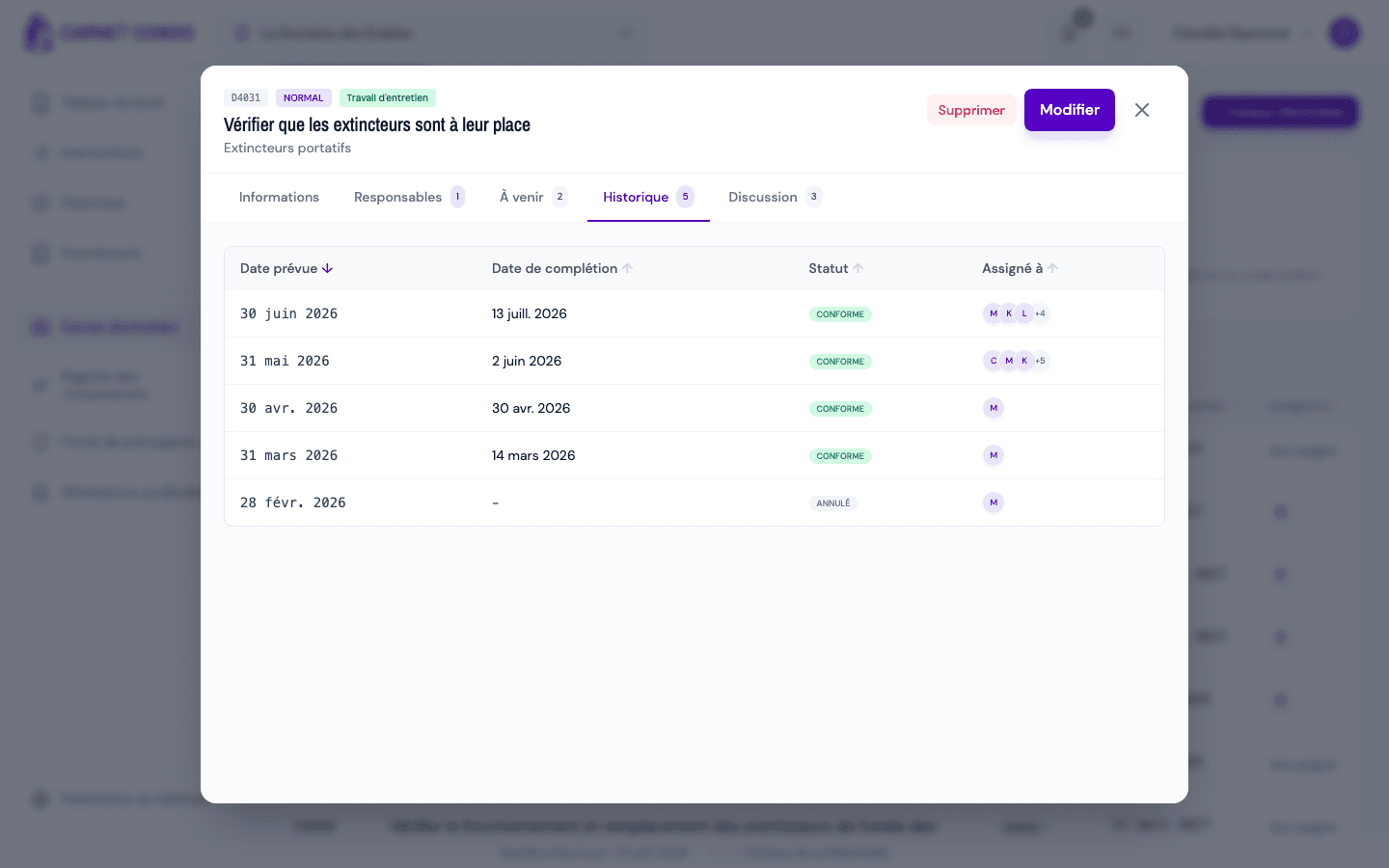
Open the "History" tab: the finished interventions (Compliant, Non-compliant, Cancelled), with an extra Completion date column.
-
Click a row, in either tab, to open the intervention's record.
An overdue intervention stays in "Upcoming"
The History tab only contains finished interventions. An intervention whose date has passed but that is not done stays in Upcoming, marked "Overdue": overdue does not mean done.
Tips and common errors
- Automatic generation: interventions are created automatically from the task's frequency; they cover the upcoming year and regenerate over time (tooltip next to "Scheduled interventions").
- Display order: Upcoming goes from nearest to furthest; History, from most recent to oldest.
- Reminder greyed out: the tooltip "Assign someone first" means the intervention has nobody to send the reminder to.
- Add an intervention on a specific date: "Add an intervention" button in the Upcoming tab (see Schedule an intervention manually).
- Empty tabs: "No upcoming interventions." or "No interventions in history.".
See also
View, filter and export the maintenance work list
Browse the logbook's maintenance tasks: filters (assignee, frequency, month, search), column sorting, "Estimated" and "Overdue" labels, Excel or PDF export.
Use the Discussion of a maintenance task
Write, edit and delete comments in the Discussion tab of a maintenance task's record; the default assignees are notified.