
Resolve scheduling conflicts after a change
Handle the conflict resolution window that appears when a schedule change affects future interventions that already carry data.
- Audience
- Administrator
- Screen
- "Schedule conflict resolution" window
- Verified version
- App 1.0.0
Goal
Decide, intervention by intervention, what to do with future occurrences that already carry data (notes, cost, photos…) when a schedule change places them outside the new schedule.
Audience
Administrator of the building.
Prerequisites
- Be an administrator.
- Have edited a task in a way that changes its schedule (recurrence, month, year or period), while future interventions carry data.
When the window appears
The window opens when, on saving an edit, the schedule changes (or the assignees change), the recurrence is anything other than "On demand", and at least one future "To do" intervention that carries data falls outside the new schedule. An intervention "carries data" as soon as it holds at least one entered value: notes, actual cost, supplier, photos, documents or a custom assignee.
Steps
-
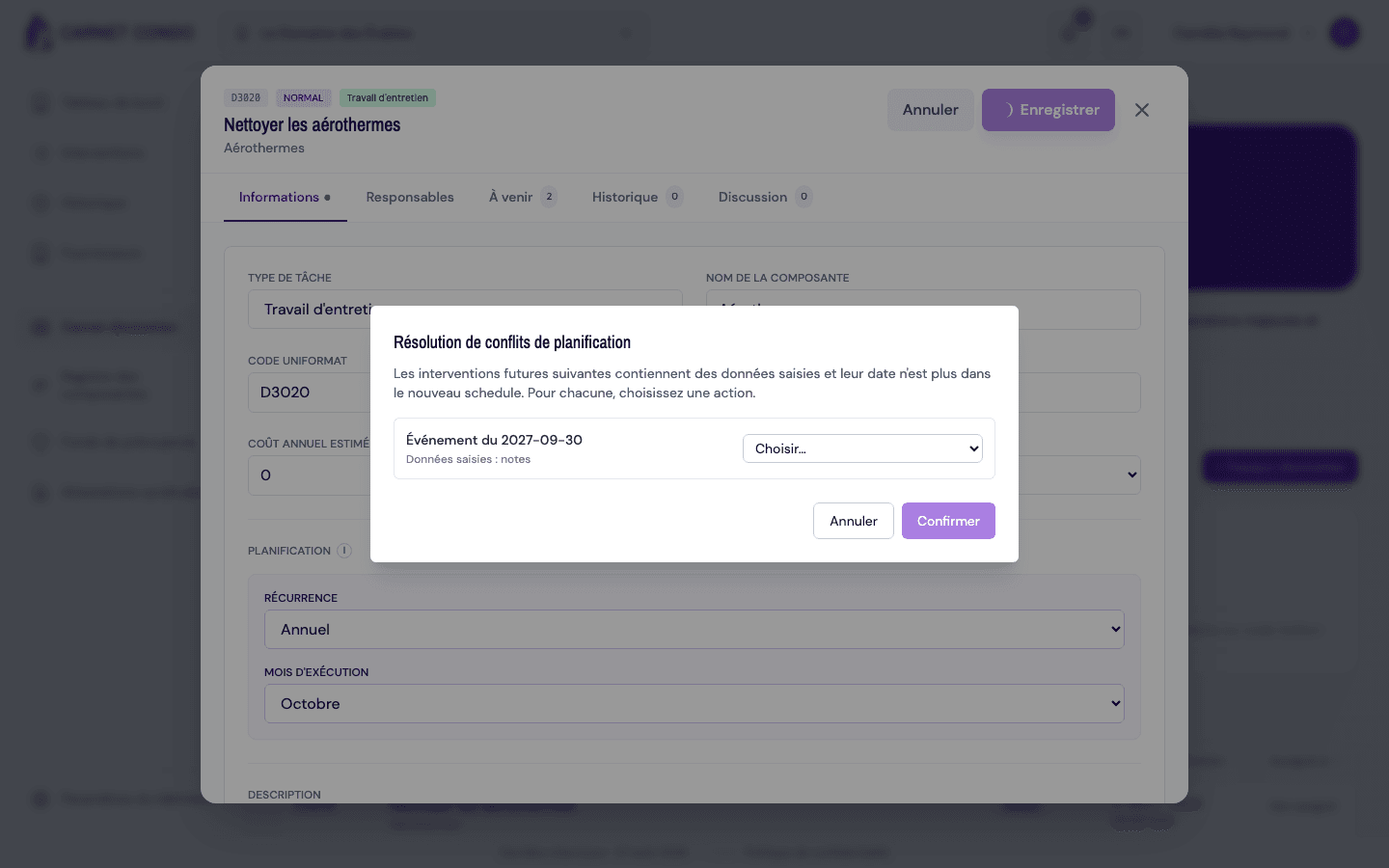
The "Schedule conflict resolution" window lists each conflicting intervention as "Intervention of YYYY-MM-DD", with a reminder of the "Entered data" (notes, cost, photos…).
-
For each intervention, choose from the menu:
- "Delete": the intervention and its data are removed.
- "Move to the proposed date": the intervention is moved to an available slot. If no slot is free, the option is disabled ("Move (no slot available)").
-
Click "Confirm" (only active once all conflicts are resolved), or click "Cancel".
The change is already saved before this window
The task change is already saved to the database before this window opens. If you click "Cancel", the task stays changed but the schedule is not reapplied: it remains out of sync until the next reload. Resolve the conflicts and click "Confirm" to keep the log consistent.
Tips and common errors
- Confirm button grayed out: the button stays disabled until a decision has been made for each conflicting intervention.
- Custom assignees preserved: interventions whose assignee differs from the default assignment are preserved by the schedule merge (unlike the cascade reassignment of assignees).
- Move not possible: if no slot is available, the "Move" option is disabled; only "Delete" remains.