
Set a task's priority
Choose a maintenance task's priority level (Urgent, Important, Normal, Low) and understand the colored badge it produces.
- Audience
- Administrator
- Screen
- Priority field (create or edit)
- Verified version
- App 1.0.0
Goal
Indicate how important a maintenance task is so you can spot it at a glance thanks to a colored badge.
Audience
Administrator of the building.
Prerequisites
Steps
-
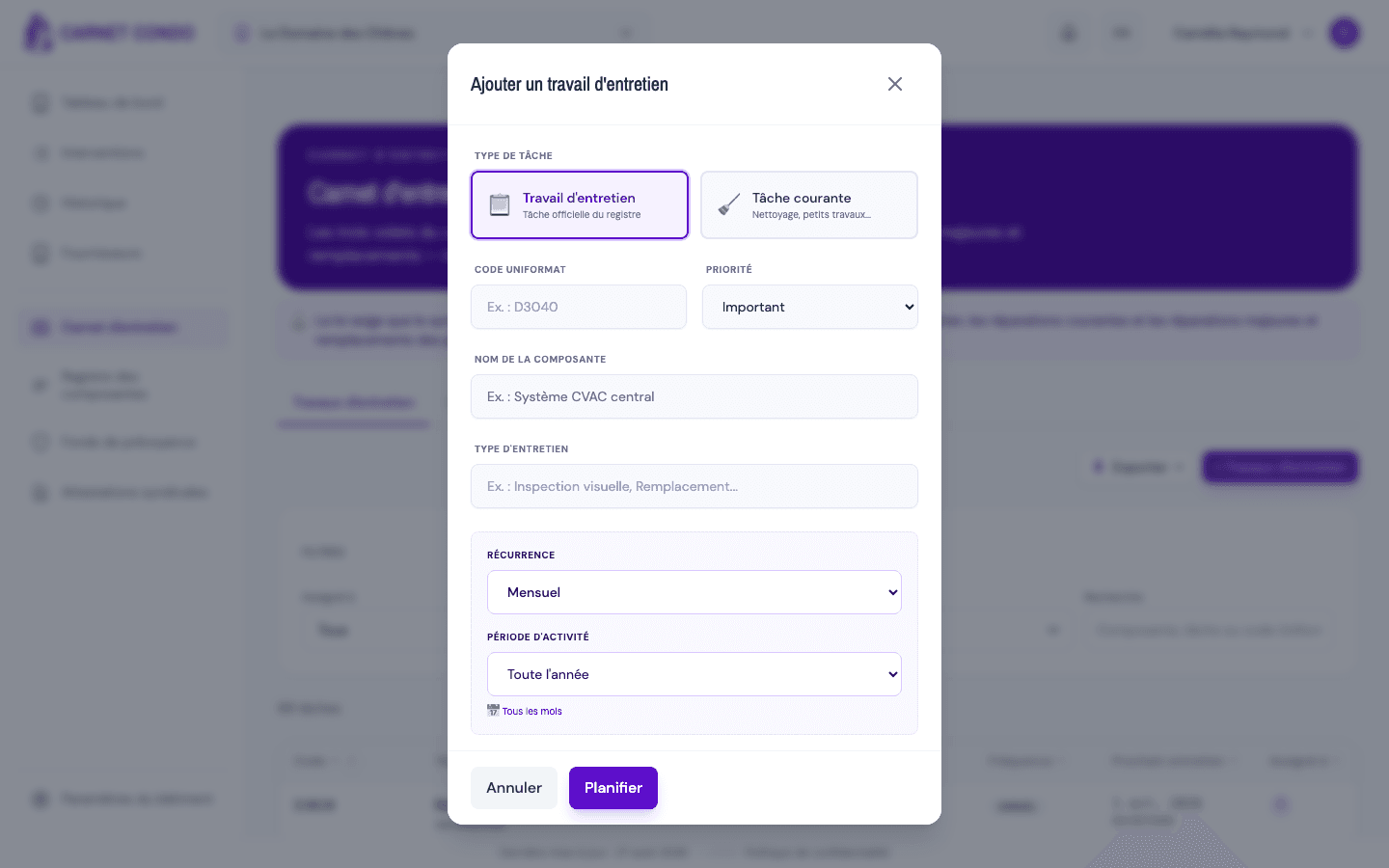
Open the Priority menu.
-
Choose a level: Urgent, Important, Normal (default) or Low.
-
The chosen priority appears as a colored badge in the header of the task record: Urgent (pink), Important (amber), Normal and Low (indigo).
Tips and common errors
- Read-only badge: in the task record (outside edit mode), the priority shows as a non-editable badge. To change it, switch to edit mode via Edit a maintenance task.
- Visual cue: the colors let you sort and quickly spot critical tasks in the log.
See also
Set recurrence, active period and execution month
Choose a maintenance task's recurrence and fill in the conditional fields (active period, execution month, year) that follow from it.
Resolve scheduling conflicts after a change
Handle the conflict resolution window that appears when a schedule change affects future interventions that already carry data.