
Edit a maintenance task
Edit an existing maintenance task from its record, Details tab, including its schedule.
- Audience
- Administrator
- Screen
- Maintenance logbook › Maintenance work, task record, Details tab
- Verified version
- App 1.0.0
Goal
Edit an existing maintenance task: type, Uniformat code, component, maintenance type, cost, priority, description and schedule (recurrence).
Audience
Administrator of the building.
Prerequisites
- Be an administrator (the building must not be read-only).
- Have opened the record of the task to edit.
Steps
-
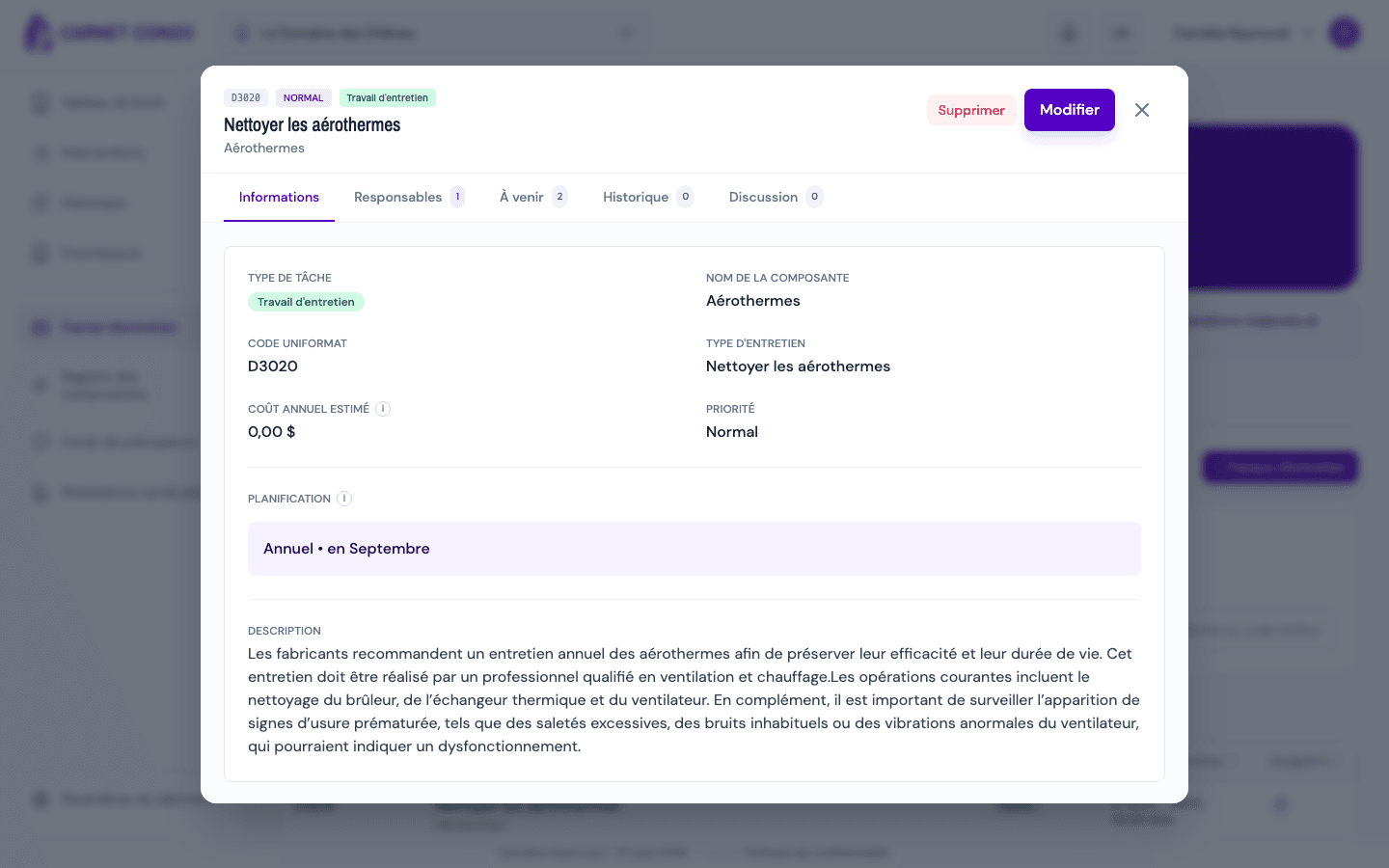
In the sidebar, click Maintenance logbook, then the Maintenance work sub-tab. In the table, click the task's row: its record opens over the list, on the Details tab. The other tabs are Assignees, Upcoming, History and Discussion.
-
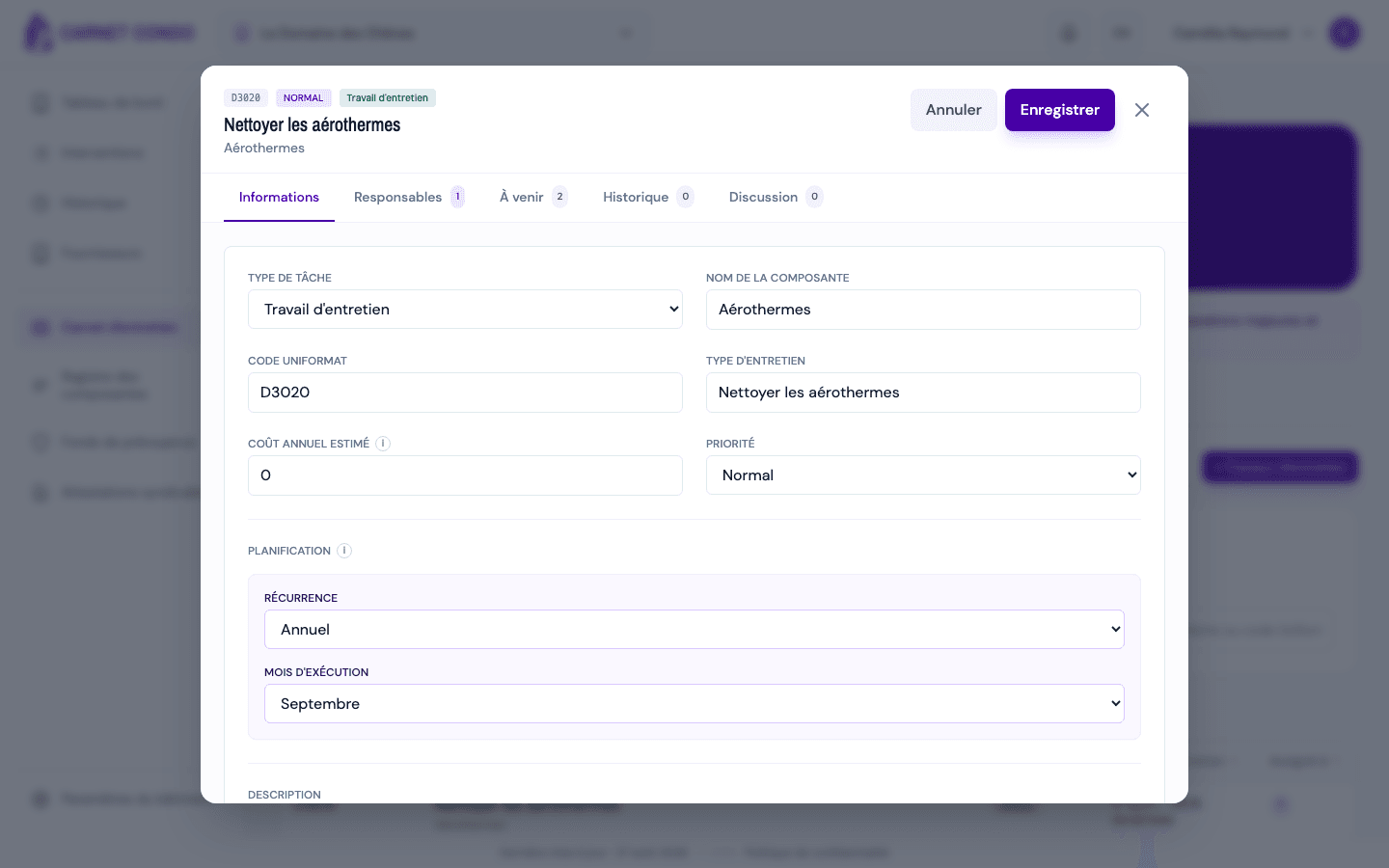
Click "Edit". The fields become editable: task type, Uniformat code, component, maintenance type, cost and priority.
-
In the Schedule section, adjust the recurrence and its conditional fields if needed. See Set recurrence, active period and execution month.
-
Edit the Description / Procedure if necessary.
-
Click "Save". A success message summarizes the interventions kept, created, deleted, moved or reassigned.
Changing the schedule can create conflicts
If you change the recurrence, the execution month, the year, the active period or the custom months, the schedule is recomputed. If future interventions that already carry data (notes, cost, photos…) fall outside the new schedule, the conflict resolution window opens so you can decide what to do with them.
Tips and common errors
- Same validations as on creation: the Uniformat code, the component name, the maintenance type and the recurrence remain mandatory.
- Unsaved changes: if you navigate away before saving, a dialog offers Save, Discard changes or Cancel.
- Detailed summary: after saving, read the "Logbook updated: X kept, Y created, Z deleted…" message to check the effect on the interventions.
See also
Create a maintenance task (official or routine)
Add a new maintenance task from the Maintenance work page, either a Maintenance work task or a Routine task, with a Uniformat code, priority and recurrence.
Delete a maintenance task
Delete a maintenance task from its record, with a two-button confirmation and history kept.