
View, filter and export the maintenance work list
Browse the logbook's maintenance tasks: filters (assignee, frequency, month, search), column sorting, "Estimated" and "Overdue" labels, Excel or PDF export.
- Audience
- Administrator
- Screen
- Maintenance logbook › Maintenance work
- Verified version
- App 1.0.0
Goal
See all the logbook's maintenance tasks at a glance ("the heart of the logbook"), find those for a given component, assignee or month, know when each one comes back, and export the list.
Audience
Building administrator (the Maintenance logbook menu is not visible to other members).
Prerequisites
- Be an administrator.
Steps
-
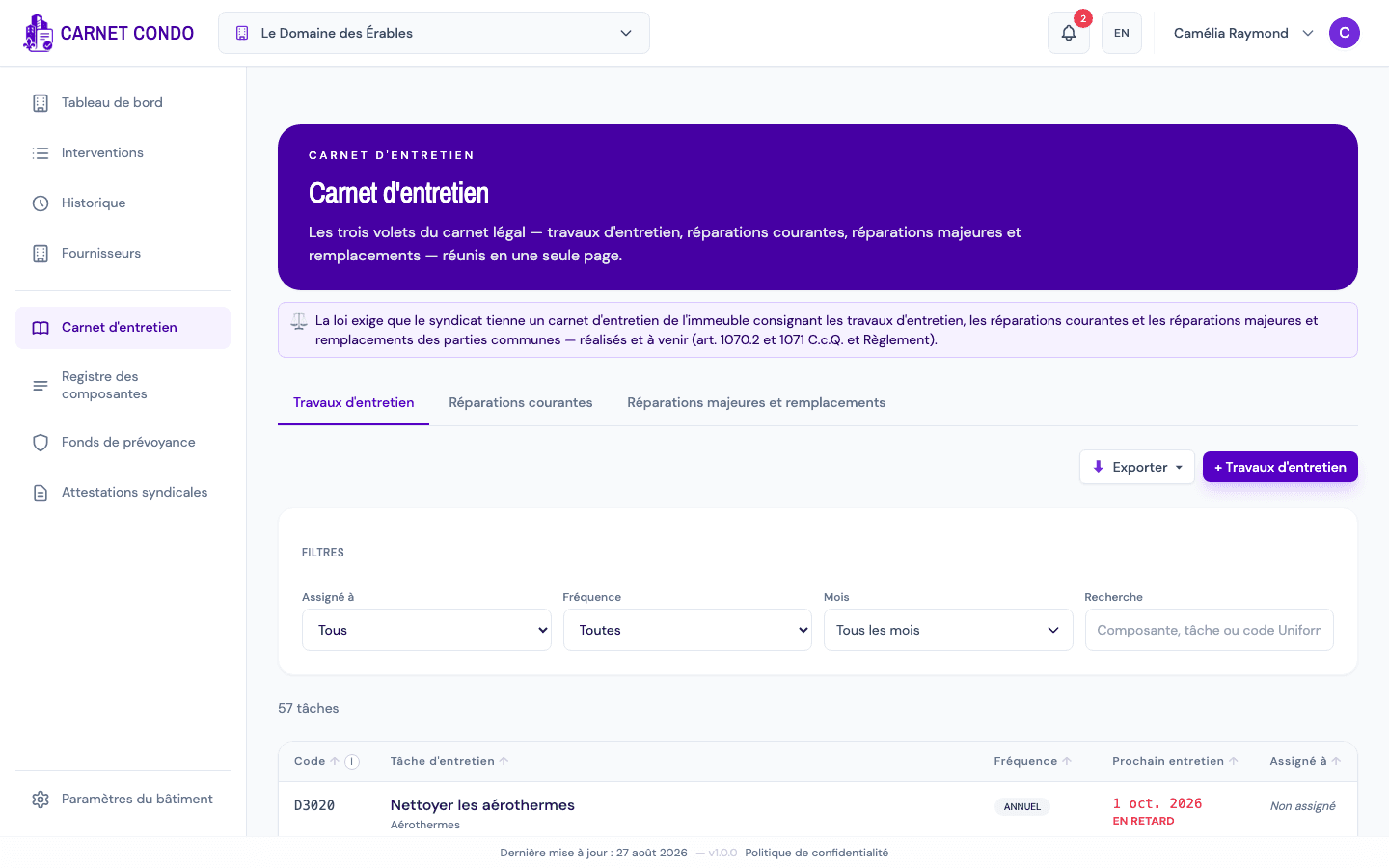
In the sidebar, open "Maintenance logbook". The "Maintenance work" sub-tab is shown by default (the other two are "Routine repairs" and "Major repairs and replacements").
-
Read the table. Each row is a task:
- Code (the component's Uniformat code);
- Maintenance task (task and component name);
- Frequency (Annual, Monthly, On demand…);
- Next maintenance: the date of the next open intervention;
- Assigned to: the default assignees.
-
Narrow the list with the "Filters" card:
- Assigned to: All, "Unassigned" or a member;
- Frequency: "All" or one frequency;
- Months: check one or more months ("All months", "Clear selection");
- Search: "Component, task or Uniformat code...". The count changes from "N tasks" to "N of M tasks" when a filter is active. The "Reset" button clears all filters.
-
Sort by clicking a column header (Code, Maintenance task, Frequency, Next maintenance, Assigned to). By default, the list is sorted by component name.
-
Click a row to open the task record.
-
To export, click "Export" in the banner, then choose Excel or PDF. The export uses the filtered list and lists the active filters.
"Estimated" and "Overdue"
- Estimated: the task has no generated intervention yet (for example a task every 2, 3 or 5 years). The date shown is calculated from the recurrence and falls on the last day of the execution month.
- Overdue (in red): the next open intervention is already past due. It stays "upcoming" until it is completed.
Tips and common errors
- Months filter: it applies to the month of the next open intervention. A task with no open intervention disappears from the list as soon as a month is checked.
- Wider search: the search also covers the task description and ignores accents.
- Filters remembered: your filters and sort are kept for this building on this browser.
- Excel is more complete than PDF: the Excel file adds priority, task type, estimated annual cost, execution month and description.
- On a phone: only the Task column is shown, with a summary (frequency, date, assignees); sorting by header is not available.
- Empty list: "No maintenance tasks" appears, with the "Create my first task" button. If your filters return nothing: "No task matches your filters.".
See also
Define default assignees
Assign a maintenance task's default assignees, on creation or through the Assignees tab of its record.
Track a task's interventions (Upcoming and History)
In a maintenance task's record, view scheduled interventions (Upcoming tab) and finished ones (History tab), spot overdue items and open an intervention.