
View a component's record
Open a component's record: key figures, items to watch, logbook works, history, inspection reports and warranties.
- Audience
- Administrator
- Screen
- Component register → component record
- Verified version
- App 1.0.0
Goal
Find in one place everything about a component: its key figures (installation, lifespan, end of life, replacement cost), what needs attention, its maintenance and repair works, what was completed, its inspection reports and its warranties.
Audience
Administrator of the building.
Prerequisites
- The component is listed in the component register.
Steps
-
In "Component register", click a row. The "Component details" record opens, with the Uniformat code and the condition in the header.
-
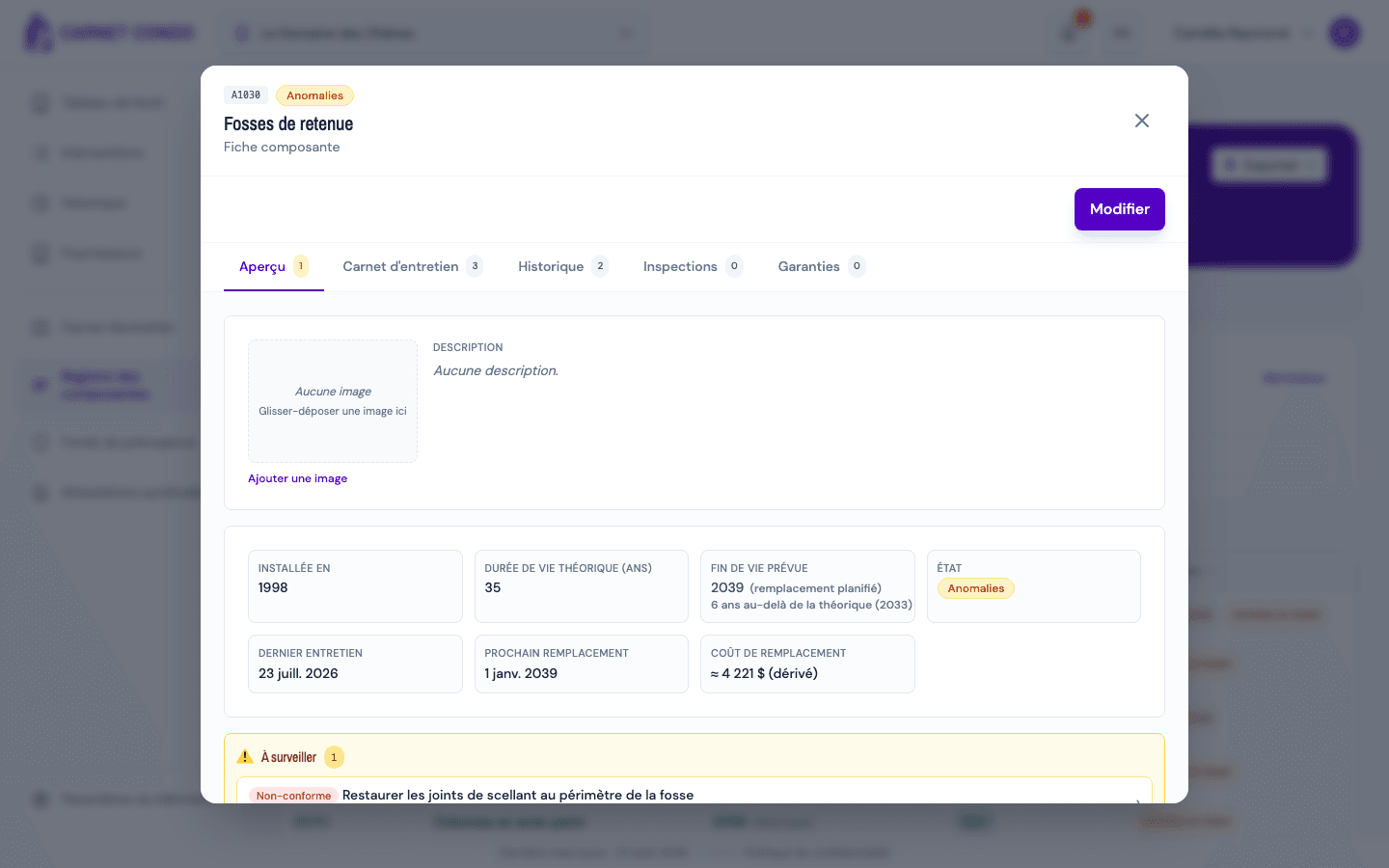
"Overview" tab:
- the component's image and description;
- key figures: Installed in, Theoretical lifespan (yrs), Planned end of life, Condition, Last maintenance, Next replacement, Replacement cost ("≈ … (derived)" when it is estimated from the works);
- the "Needs attention" box: each open item (non-compliance, open follow-up, overdue work…) is clickable. If there is nothing: "Nothing to flag".
-
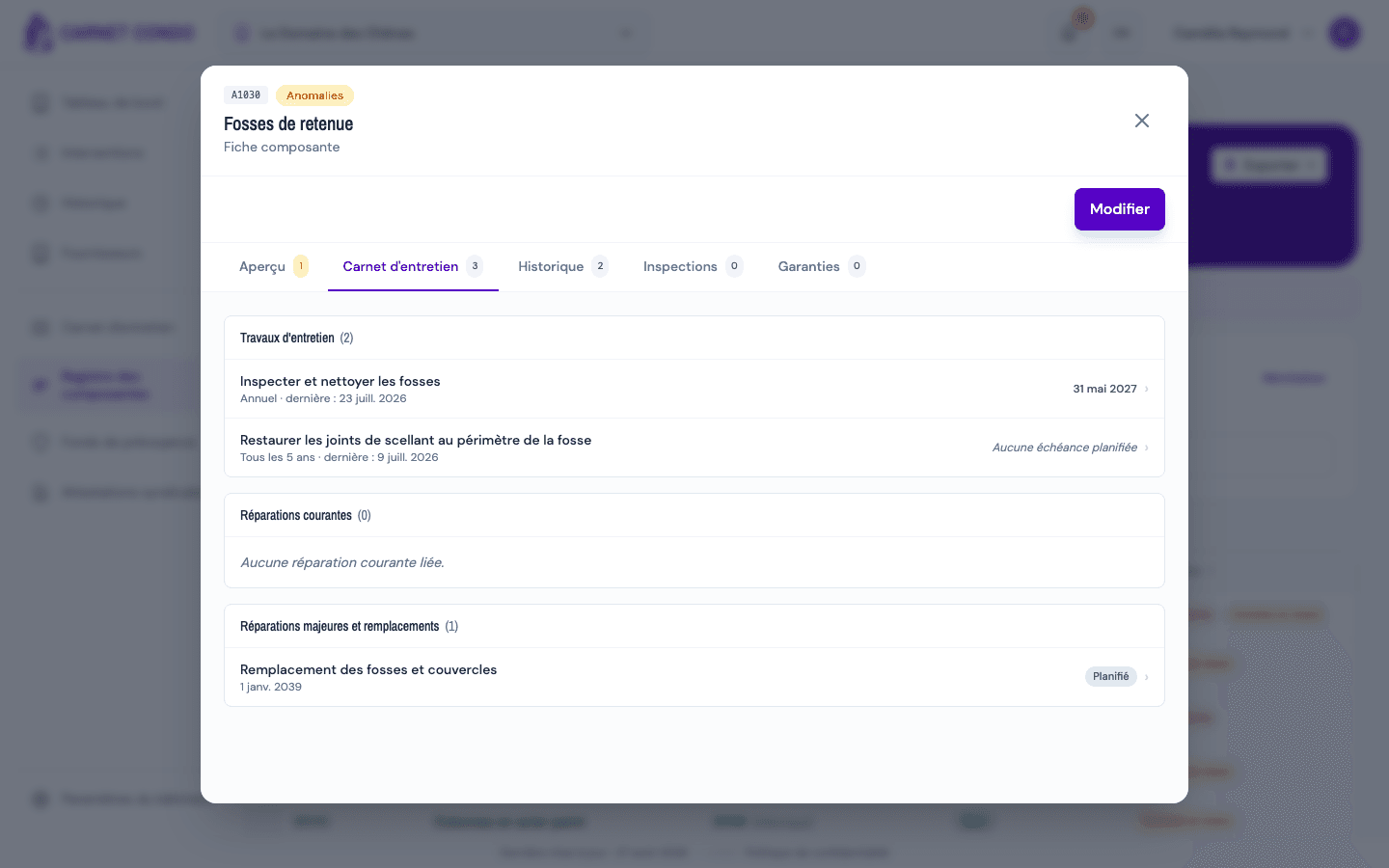
"Maintenance logbook" tab: three stacked sections, Maintenance work (with frequency, last completion and next due date), Routine repairs and Major repairs & replacements. Click a row to open the work.
-
"History" tab: everything completed for the component, all families together (Maintenance, Routine repair, Major repair).
-
"Inspections" tab: inspection reports specific to the component (professional report, study, expert assessment). An administrator can upload files there and set the inspection date (see Add an inspection report).
-
"Warranties" tab: warranties attached to the component itself (e.g. original manufacturer warranty), then the warranties from related works, which are managed in the record of the work that carries them (see Add a warranty to a component).
Tab counters
The number next to each tab shows how many items it contains (items to watch, works, completions, reports, warranties).
Tips and common mistakes
- Edit the record: the "Edit" button at the top lets you correct the description and key figures (see Edit a component).
- The condition cannot be edited: it comes from works and reports. To change it, deal with the cause (resolve the non-compliance, complete the overdue maintenance…).
See also
View the component register (condition, end of life, to watch)
See every building component with its planned end of life, its condition and what needs watching.
Edit a component (description, installation, lifespan, cost, image)
From a component's record, correct its description, installation year, theoretical lifespan, replacement cost and image.