
Undo a resolution
Remove the resolution from a non-compliant intervention to bring it back to "unresolved non-compliant" and readjust the compliance counts.
- Audience
- Administrator or assigned person
- Screen
- Intervention record, edit mode
- Verified version
- App 1.0.0
Goal
Remove the resolution from an intervention (entry error, or the problem came back). The intervention reverts to an unresolved "Non-compliant" and the compliance counts readjust.
Audience
Administrator of the building or a person assigned to the intervention.
Prerequisites
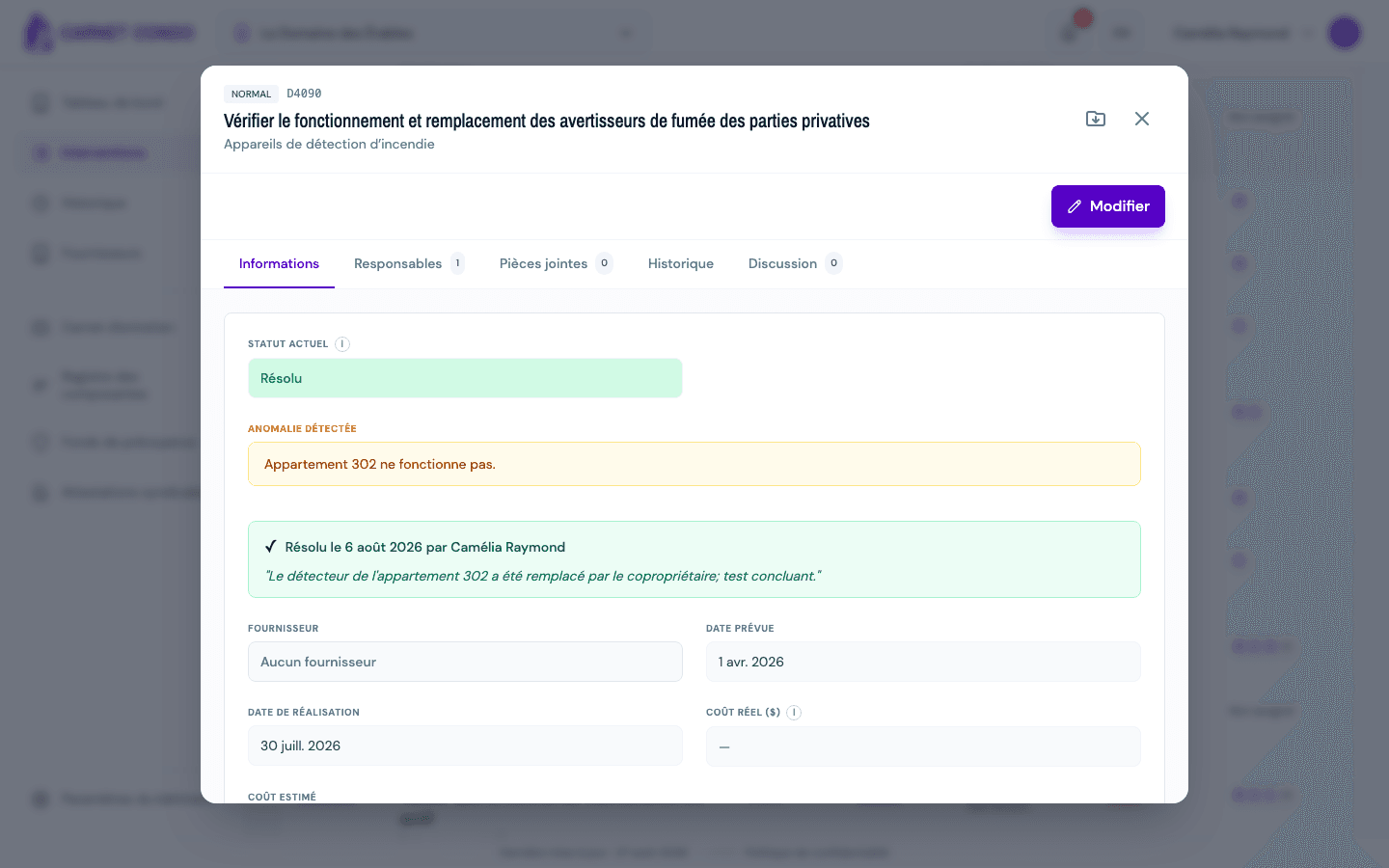
- The intervention has been resolved: its status shows "Resolved" in green, with a "✓ Resolved on (date) by (author)" box and the repair note.
- Be an administrator or assigned.
Steps
-
Open the intervention from "History" (left menu): it appears there with the green "Resolved" badge.
-
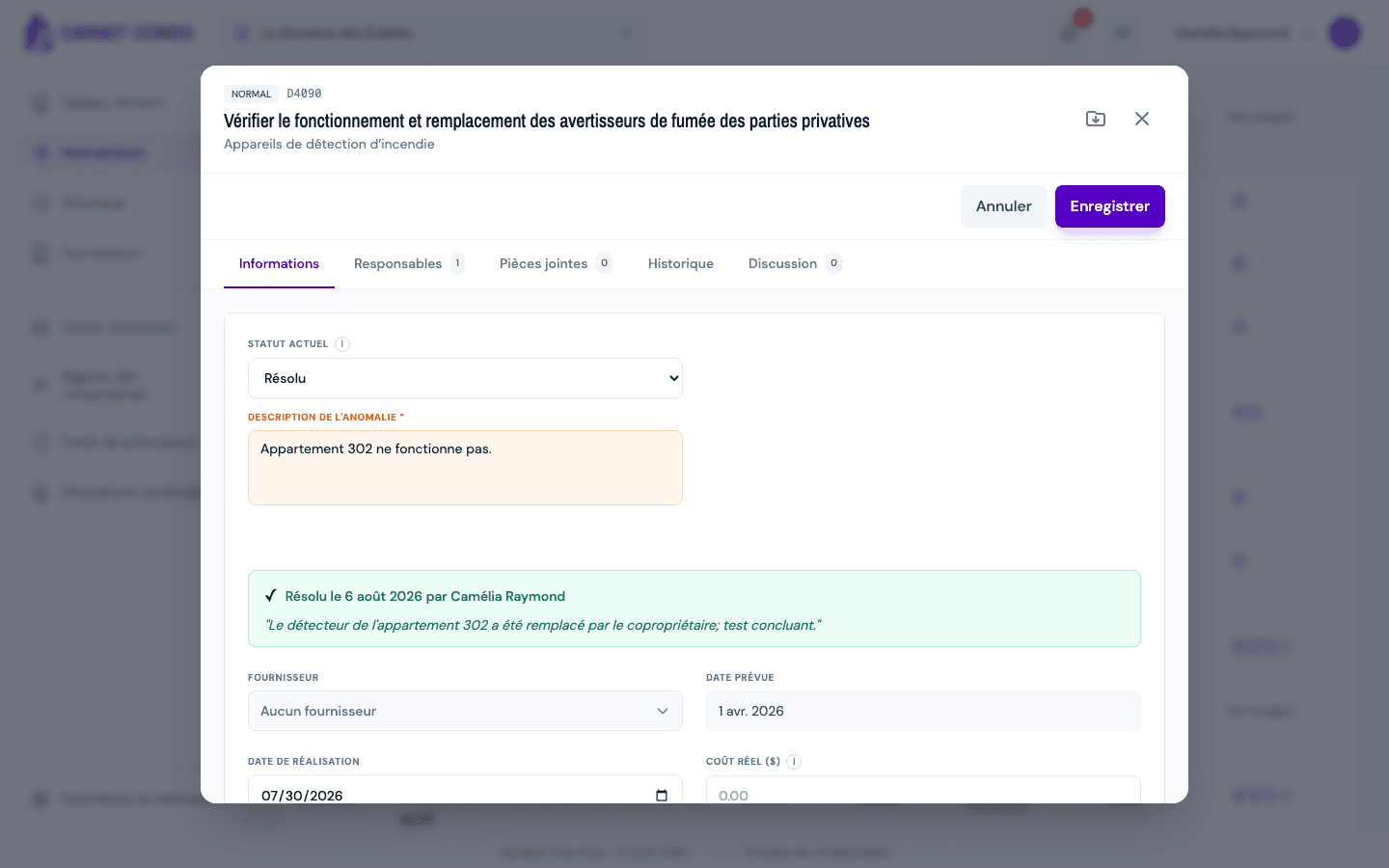
In the "Information" tab, click "Edit". The "Current status" menu shows "Resolved".
-
In that menu, choose "Non-compliant". A confirmation appears: "Undo the resolution? The intervention will revert to unresolved non-compliant."
-
Confirm. The resolution is removed immediately (without waiting for "Save"): the message "Resolution undone" appears and the "Resolved on…" box disappears.
Counts readjusted
After undoing, the intervention no longer counts as compliant in the Law 16 summary: it becomes an open problem again until it is resolved again. The "Create follow-up" button reappears for administrators.
Tips and common mistakes
- The repair note is erased: undoing the resolution removes the note, date, author and follow-up link. Enter them again if you resolve again.
- Confirmation: the action asks for explicit confirmation to prevent accidental removals. If you decline, nothing changes.
- No undo in the menu? Only the administrator and assigned people see the "Resolved" option and can remove it.
See also
Resolve a non-compliance
Record that the problem on a non-compliant intervention was fixed, with a required repair note; the intervention then shows as "Resolved" without erasing the original finding (Law 16).
Create a follow-up
Schedule a dated corrective intervention from a detected anomaly; the follow-up is linked to the non-compliance and appears as a new intervention.