
Export your dashboard (Excel or PDF)
Download the list shown on the dashboard as Excel or PDF, with the period, the scope and the active card stated in the export.
- Audience
- Everyone
- Screen
- Dashboard › Export
- Verified version
- App 1.0.0
Goal
Keep a record of what is to do or what was done, or hand it to the board of directors or a supplier, as Excel or PDF.
Audience
All members of the building.
Prerequisites
- Be on the Dashboard, with at least one intervention in the list.
Steps
-
First set what you want to export: the analysis period, the "Show whole building" switch (administrator) and, if needed, a card (Overdue or Completed). The export contains exactly the list on screen.
-
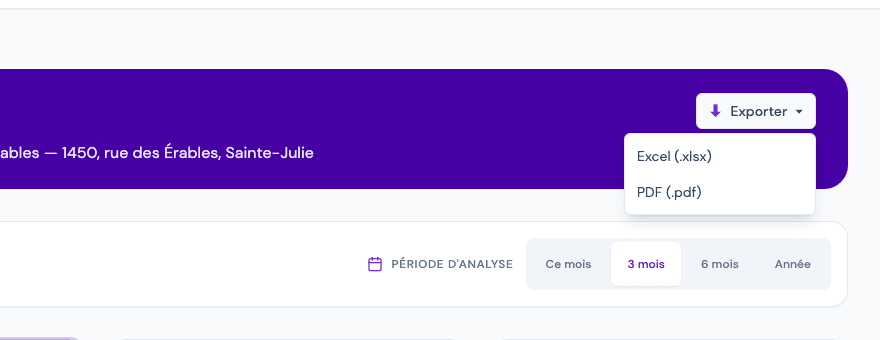
Click "Export", at the top right of the purple banner.
-
Choose "Excel (.xlsx)" or "PDF (.pdf)". The file downloads right away.
-
Open the file. Its header states:
- the building, the tab ("Interventions") and the source section ("Dashboard - Interventions");
- the export date, the user (your email address) and the total number of rows;
- the active filters: Period (for example "Next 3 months"), Scope ("My interventions" or "Whole building") and, if a card is active, View ("Overdue only" or "Completed in period").
In the PDF, the subtitle also gives the horizon, for example "To do for the next 3 months".
Exporting completed interventions
Turn on the Completed card before exporting: the export becomes a history (tab "History", section "Dashboard - History"). The PDF then adds a summary, Interventions, Compliant, Non-compliant and Compliance rate, and highlights non-compliant rows.
Tips and common errors
- More detail than the screen: the export adds the Code (Uniformat) and Priority columns, and the description under each intervention.
- File name: it starts with "interventions" (or "historique" when the Completed card is active), followed by the building name, the date and the time; for example
interventions_le-domaine-des-erables_2026-10-29-1458.pdf. - Button disabled: with no rows, the Export button is greyed out ("Nothing to export").
- Complete data: the PDF reminds you to use the Excel export for the complete data.
- On a phone: the Export button stays in the purple banner, under the title.
See also
View all the building's interventions
Switch the dashboard between your own tasks and every intervention in the building with the "Show whole building" switch.
Contact the board of directors
Find your syndicate's administrators in the "Board of directors" card of the dashboard and write to them in one click.