
View all the building's interventions
Switch the dashboard between your own tasks and every intervention in the building with the "Show whole building" switch.
- Audience
- Administrator
- Screen
- Dashboard › Show whole building
- Verified version
- App 1.0.0
Goal
Go from your tasks to all the building's interventions, including those assigned to nobody, to steer maintenance as a whole.
Audience
Building administrator. Other members do not see this switch.
Prerequisites
- Be an administrator of the building.
- Be on the Dashboard.
Steps
-
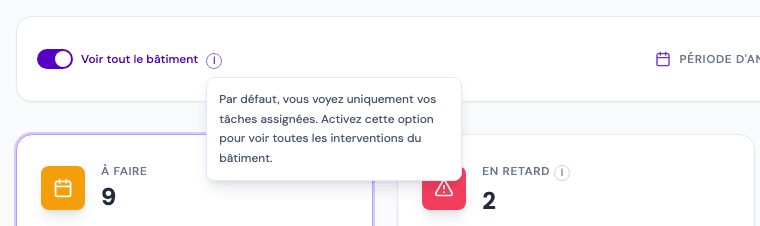
Find the "Show whole building" switch, to the left of the period bar.
-
Hover the (i) icon next to it: "By default, you only see your assigned tasks. Enable this to see every intervention in the building."
-
Click the switch:
- on (purple): the cards and the list count all the building's interventions, assigned or not;
- off (grey): only the interventions you are responsible for.
-
The analysis period and the cards work the same way in both cases.
To spot what nobody is assigned to
Turn on "Show whole building": interventions without an assignee show "Unassigned" in the Assigned to column. Open them to give them an assignee.
Tips and common errors
- Choice remembered: the switch position is kept for each building, in this browser.
- In the export: the export lists it in its filters, "Scope: Whole building" or "Scope: My interventions".
- Members: a member always sees only their own tasks on the dashboard. To see all the building's interventions, they use the Interventions page, open to all members.
- Cards at zero: if the switch is off and nothing is assigned to you, the cards show 0; turn it on to see the whole building.
See also
Choose the analysis period
Set the dashboard's horizon (This month, 3 months, 6 months, Year) and understand what it changes in the cards, the list and the export.
Export your dashboard (Excel or PDF)
Download the list shown on the dashboard as Excel or PDF, with the period, the scope and the active card stated in the export.