
Find your way around the menu
The header, the left menu, what an administrator sees that a member does not, and the bottom bar on a phone.
- Audience
- Everyone
- Screen
- Header, left menu, bottom bar (phone)
- Verified version
- App 1.0.0
Goal
Know where to find each page of the app, and understand why two people in the same building do not see the same menu.
Audience
All members. What the menu contains depends on your role in the active building.
Prerequisites
- Be signed in and a member of at least one building.
Steps
-
The header, at the top of every page, contains from left to right:
- the Carnet Condo logo;
- the building selector (the active building's name): it opens "My buildings" and the "Create a building" button (see Switch the active building);
- the notification bell (see View your notifications);
- the EN / FR button, which changes the app's language;
- your name and initial, which open the user menu.
-
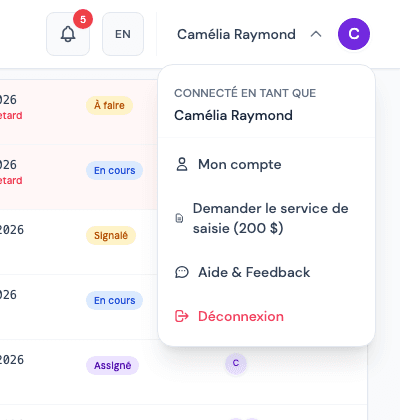
The user menu shows "Signed in as" and your name, then:
- My account;
- Request the data-entry service ($200) (administrators only);
- Help & Feedback (see Write to the team);
- Log out (in red).
-
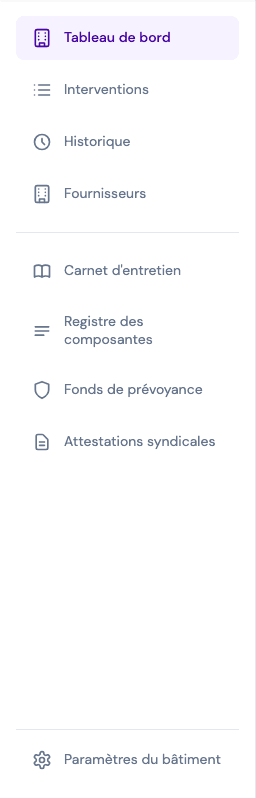
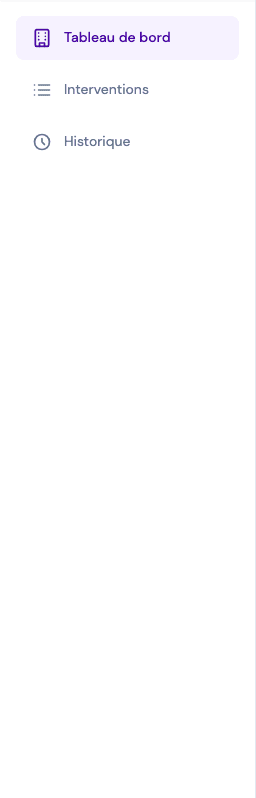
The left menu depends on your role:
Entry Member Administrator Dashboard ✔ ✔ Interventions ✔ ✔ History ✔ ✔ Suppliers ✔ Maintenance logbook ✔ Component register ✔ Reserve fund ✔ Syndicate attestations ✔ Building settings (bottom of the menu) ✔ The entry for the page on screen is highlighted in purple.
-
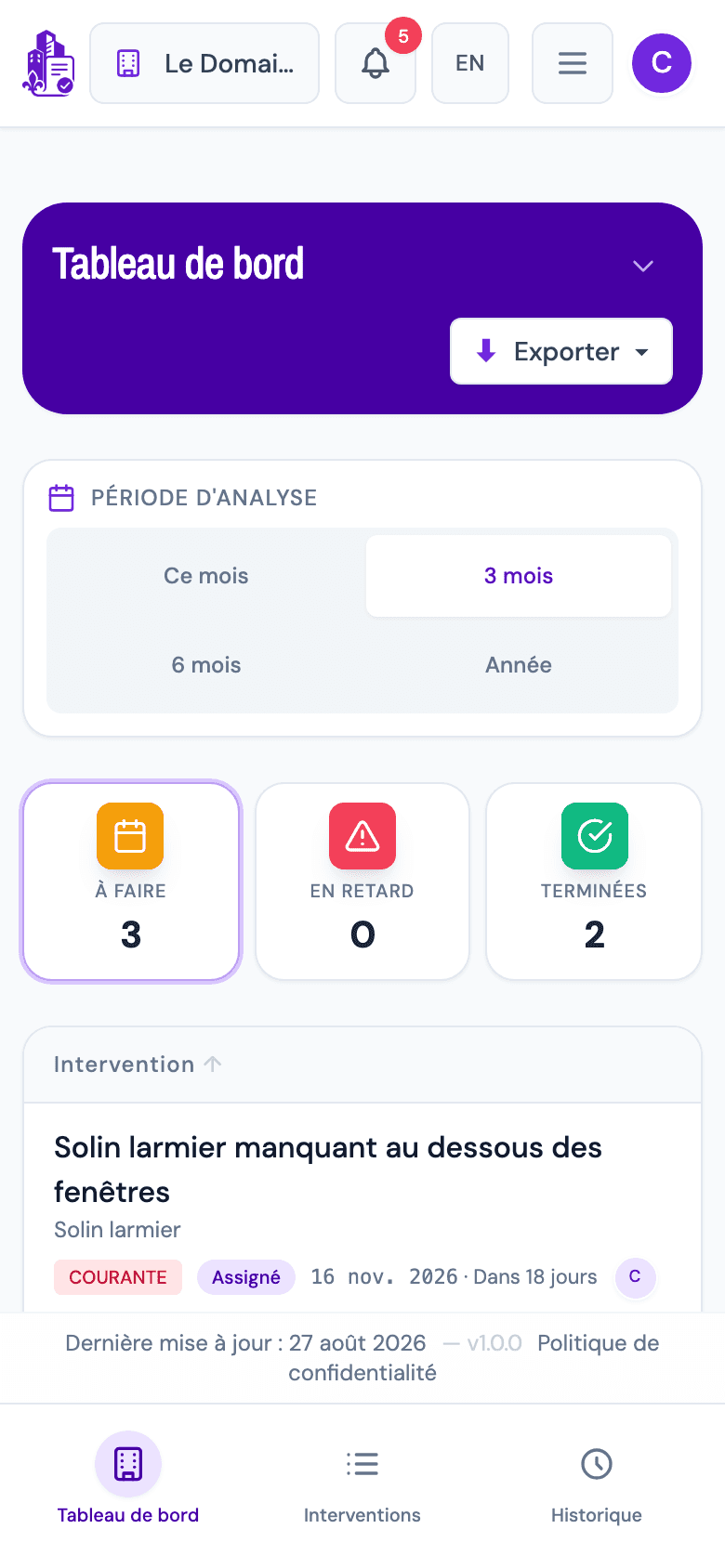
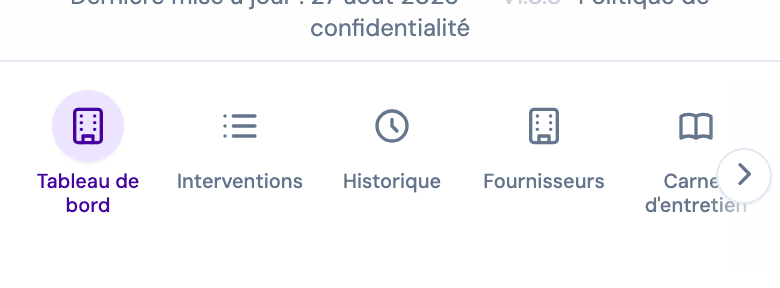
On a phone, the left menu disappears and becomes a bar at the bottom of the screen, with the same entries (icon and name). The user menu becomes a ☰ icon next to your initial, and the building name is shortened.
-
An administrator has more entries than the screen is wide: swipe the bottom bar to the left (an › arrow shows there is more) to reach Maintenance logbook, Component register, Reserve fund, Syndicate attestations and Building settings.
Roles are per building
You can be an administrator of one building and a plain member of another. When you switch the active building, the menu changes with you.
Tips and common errors
- An entry is missing: you are a member, not an administrator, of this building. Ask an administrator for access ("Board of directors" card on the dashboard).
- Footer: at the bottom of every page, the last update date, the app's version number and the privacy policy link.
- Creating a building on a phone: from the building selector, a "Desktop-only feature" window asks you to switch to a computer (see Create a building).
- On a phone, the banner at the top of pages folds up: tap the ⌄ arrow to show the description.
- Going back: when you leave a record opened from a list, you go back to the page you came from (Dashboard, Interventions, History…), at the same position in the list.
See also
View your notifications
Open the bell, read a notification and land directly on the right tab of the record, mark all as read and see all your notifications.
Understand access messages
What to do when you see "Admin-only section", "Access denied" or "Page not found": why they appear and how to get out.