
View your notifications
Open the bell, read a notification and land directly on the right tab of the record, mark all as read and see all your notifications.
- Audience
- Everyone
- Screen
- Bell (header) › All notifications
- Verified version
- App 1.0.0
Goal
Know what changed on your interventions (an assignment, a comment, a status change, a document added) and get there in one click.
Audience
All members. Each person only sees their own notifications.
Prerequisites
- Be signed in.
Steps
-
Find the bell at the top right, next to the language button. A red badge shows the number of unread notifications ("9+" above 9).
-
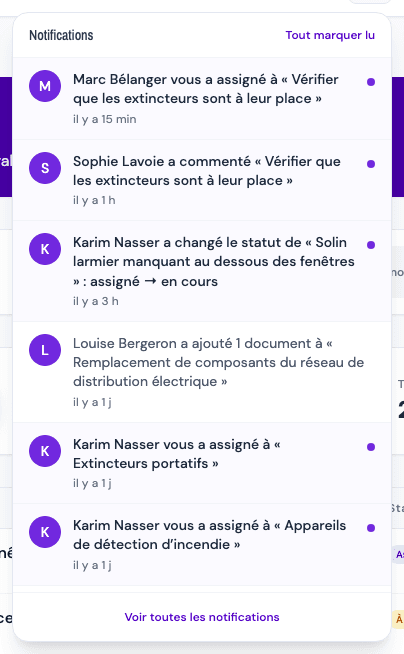
Click the bell. The "Notifications" panel opens with your 10 most recent notifications. Each one shows:
- the initial of the person who did the action;
- the sentence describing the action, for example "Marc Bélanger assigned you to "…"" or "Sophie Lavoie commented on "…"";
- when it happened ("13 min ago", "1 d ago").
An unread notification is in bold, on a light purple background, with a purple dot on the right.
-
Click a notification: it is marked as read and the related record opens directly on the right tab:
- a comment opens the Discussion tab;
- an added photo opens the Photos tab;
- an added document opens the Documents tab;
- an assignment, or a change of status, date, cost or information, opens the record on its first tab.
-
To clear everything at once, click "Mark all as read" at the top of the panel. The bell badge disappears. This button only shows while there are unread notifications.
-
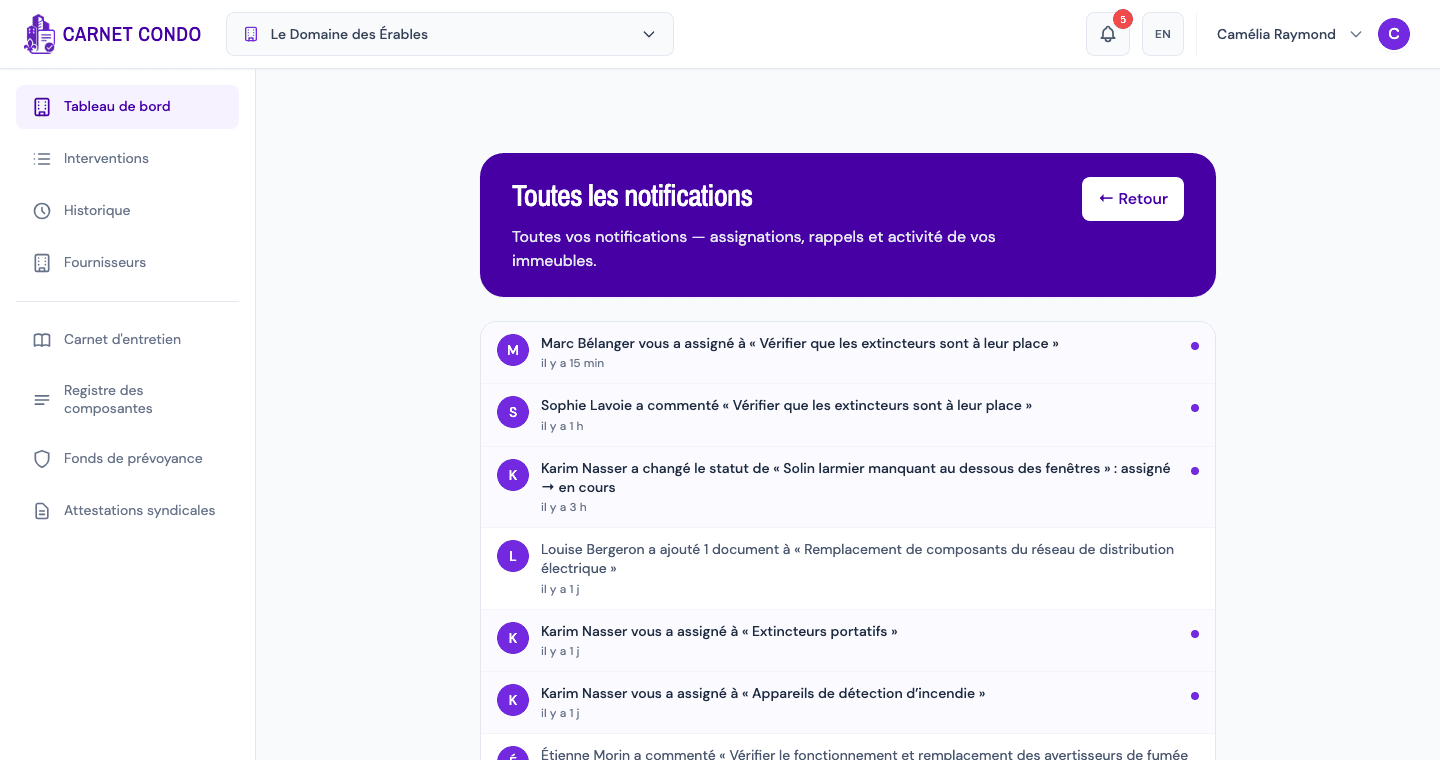
To go further back, click "See all notifications" at the bottom of the panel. The "All notifications" page ("All your notifications — assignments, reminders and activity across your buildings.") shows them 25 at a time; click "Load more" for the next ones, and "← Back" to return where you were.
Notifications from all your buildings
The bell gathers the notifications of every building you are a member of. Clicking a notification from another building opens the record in that building.
What creates a notification
| Action by another member | Example sentence |
|---|---|
| Assign you to an intervention | "… assigned you to "…"" |
| Change the status | "… changed the status of "…": assigned → in progress" |
| Comment | "… commented on "…"" |
| Add photos or documents | "… added 2 photos to "…"" |
| Change the planned date, completion date or cost | "… updated the planned date of "…"" |
| Change other fields | "… updated 1 field on "…": notes" |
Notifications cover maintenance interventions, routine repairs, major repairs and the Discussion of maintenance tasks.
Tips and common errors
- Close the panel: click outside it or press Escape.
- "No notifications yet.": nothing new concerns you.
- Loading error: a message shows with "Retry"; it is not the same as "no notifications".
- Access denied when clicking: the notification is about a building you are no longer part of (see Understand access messages).