
Read your dashboard
Understand the building's home page: the To do, Overdue and Completed cards, the list of interventions and how to focus it with one click.
- Audience
- Everyone
- Screen
- Dashboard
- Verified version
- App 1.0.0
Goal
See at a glance what is waiting for you: how many interventions are to do, how many are overdue, how many were completed, and which ones.
Audience
All members of the building. An administrator also sees the "Show whole building" switch (see View all the building's interventions).
Prerequisites
- Be a member of the building.
Steps
-
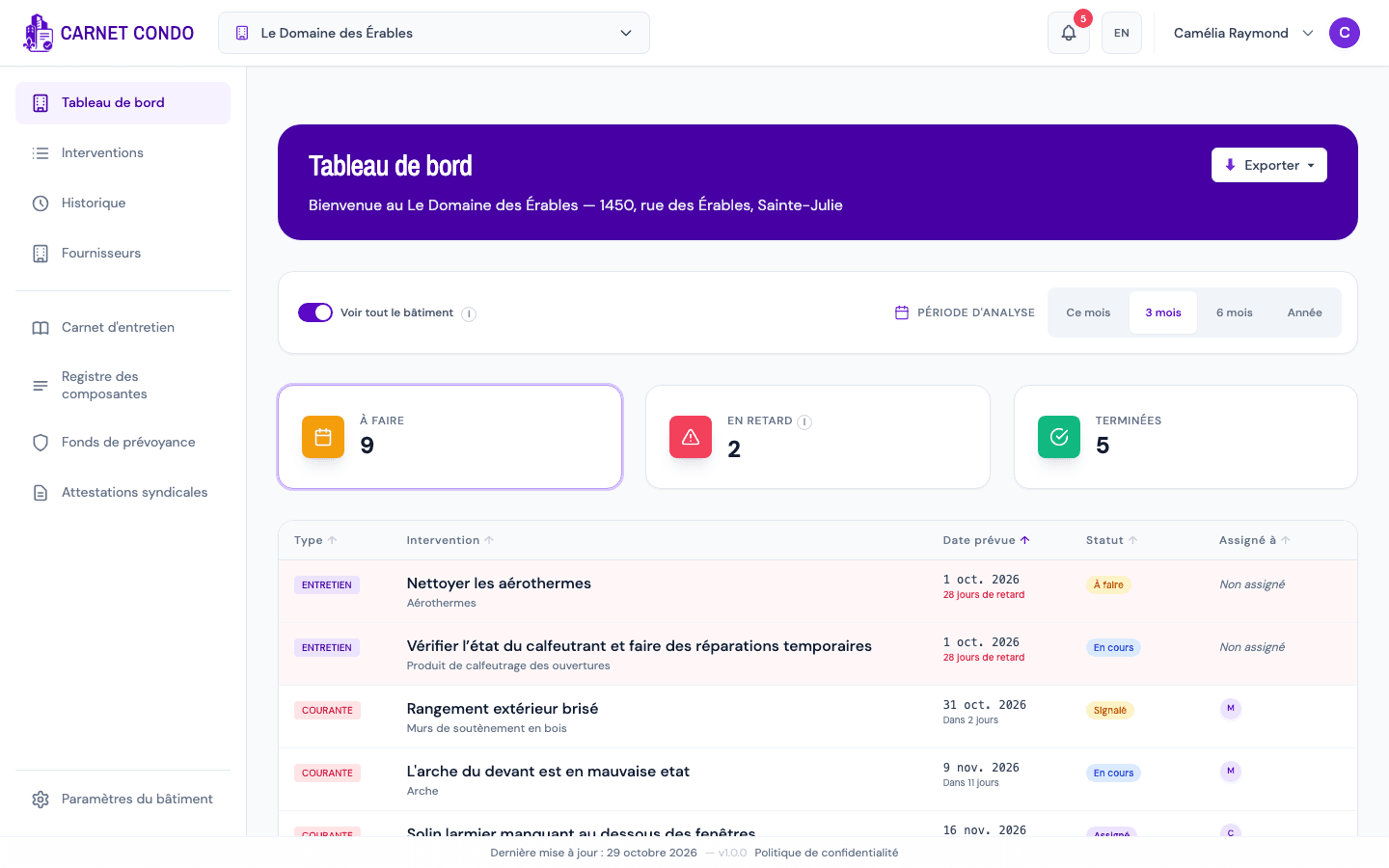
Click "Dashboard" in the menu. It is also the page that opens when you sign in. The purple banner shows "Welcome to (building name) — (address)" and, on the right, the "Export" button.
-
Under the banner, the "Analysis period" bar (This month, 3 months, 6 months, Year) sets the horizon of the numbers and of the list (see Choose the analysis period).
-
Read the three cards:
- To do: every open intervention in the period, including overdue ones;
- Overdue: open interventions whose due date has passed (tooltip: "Incomplete tasks whose scheduled date has already passed.");
- Completed: interventions closed during the past period (the last 3 months if the period is "3 months").
-
Read the list under the cards. It brings the three kinds of work together, each with a label in the Type column: Maintenance (maintenance work), Routine (routine repairs) and Major (major repairs). For each row:
- Intervention: the title, with the component underneath;
- Due date: the date, with a relative reminder underneath ("In 2 days", "28 days late"); overdue rows are tinted red;
- Status;
- Assigned to: the assignees' initials, or "Unassigned".
-
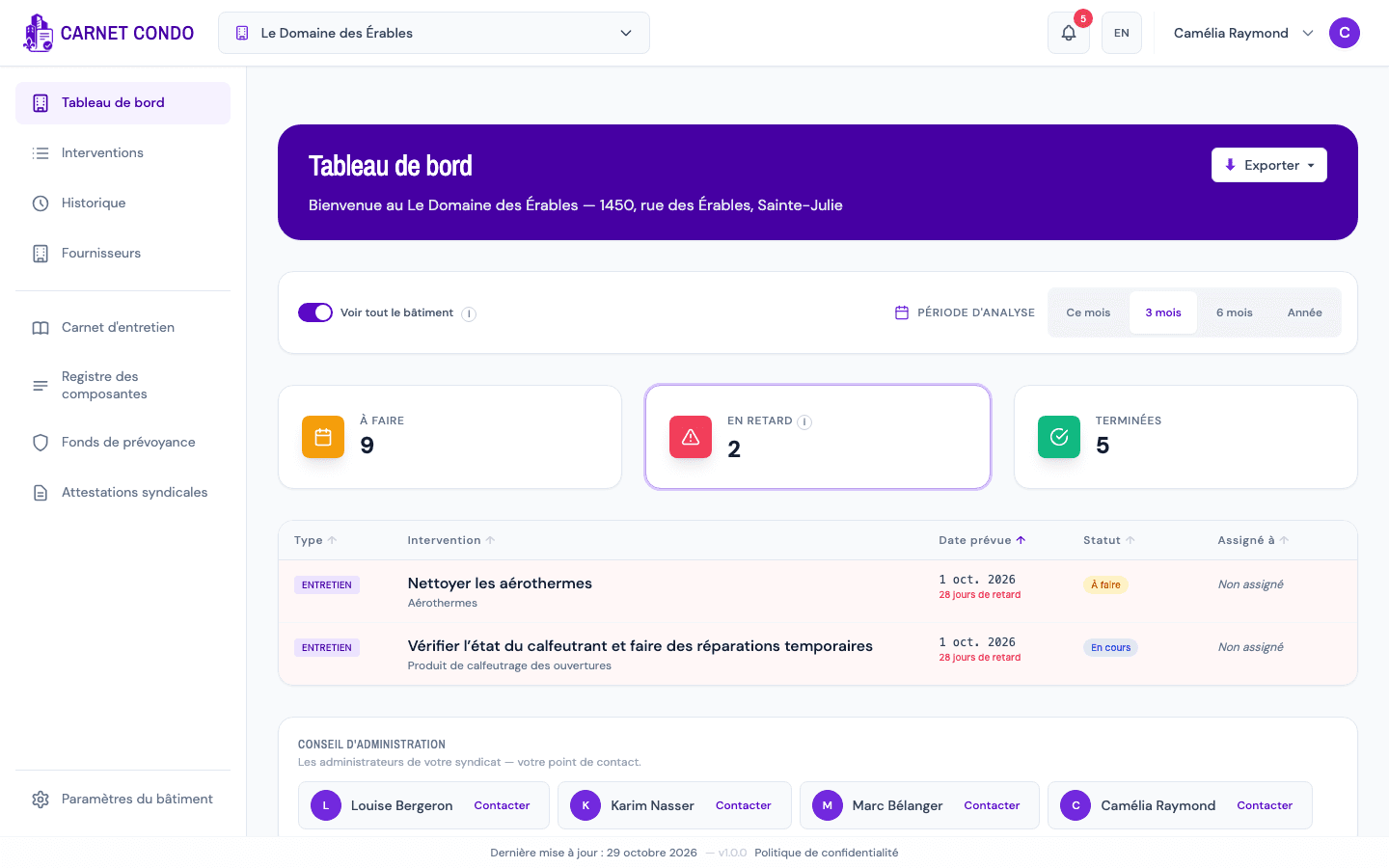
Click a card to focus the list:
- Overdue: the list only shows overdue items;
- Completed: the list shows the interventions completed in the period, with the Completion date and Completed by columns;
- To do (or clicking the active card again): back to the full list.
The active card has a purple outline.
-
Click a row to open the record of the intervention or repair. When you close it, you are back on the dashboard.
-
At the very bottom of the page, the "Board of directors" card lists the administrators to contact (see Contact the board of directors).
Your tasks, or the whole building?
By default, the dashboard only shows the interventions assigned to you. An unassigned intervention, or one assigned to someone else, does not appear. An administrator can turn on "Show whole building"; a member finds all the building's interventions on the Interventions page.
Tips and common errors
- One row per intervention: each scheduled intervention appears on its date, so a monthly task can appear several times over a 3-month period.
- Sort: click a column header (Type, Intervention, Due date, Status, Assigned to). By default the list is sorted by due date, nearest first. The chosen sort is remembered.
- Active card not remembered: when you come back to the dashboard, the full list (To do) shows again.
- Empty list: "No interventions yet." means nothing is assigned to you in the period. Widen the period or, if you are an administrator, turn on "Show whole building".
- On a phone: the three cards fit side by side in a compact format, and each intervention is shown as a card (title, type, status, date, assignees).
- Empty building: an administrator of a newly created building also sees the startup checklist above the cards.
See also
Force (correct) a locked status
As an administrator, correct the status of a finished intervention that was set by mistake, with a required reason that is logged (Law 16).
Choose the analysis period
Set the dashboard's horizon (This month, 3 months, 6 months, Year) and understand what it changes in the cards, the list and the export.