
Building & team
Switch the active building
Switch from one building to another from the "My buildings" selector in the header.
- Audience
- Everyone
- Screen
- "My buildings" selector (header)
- Verified version
- App 1.0.0
Goal
Switch from one building to another when you manage several buildings with the same account.
Audience
All members with access to at least two buildings.
Prerequisites
- Access to several buildings (otherwise the selector has nothing to offer).
Steps
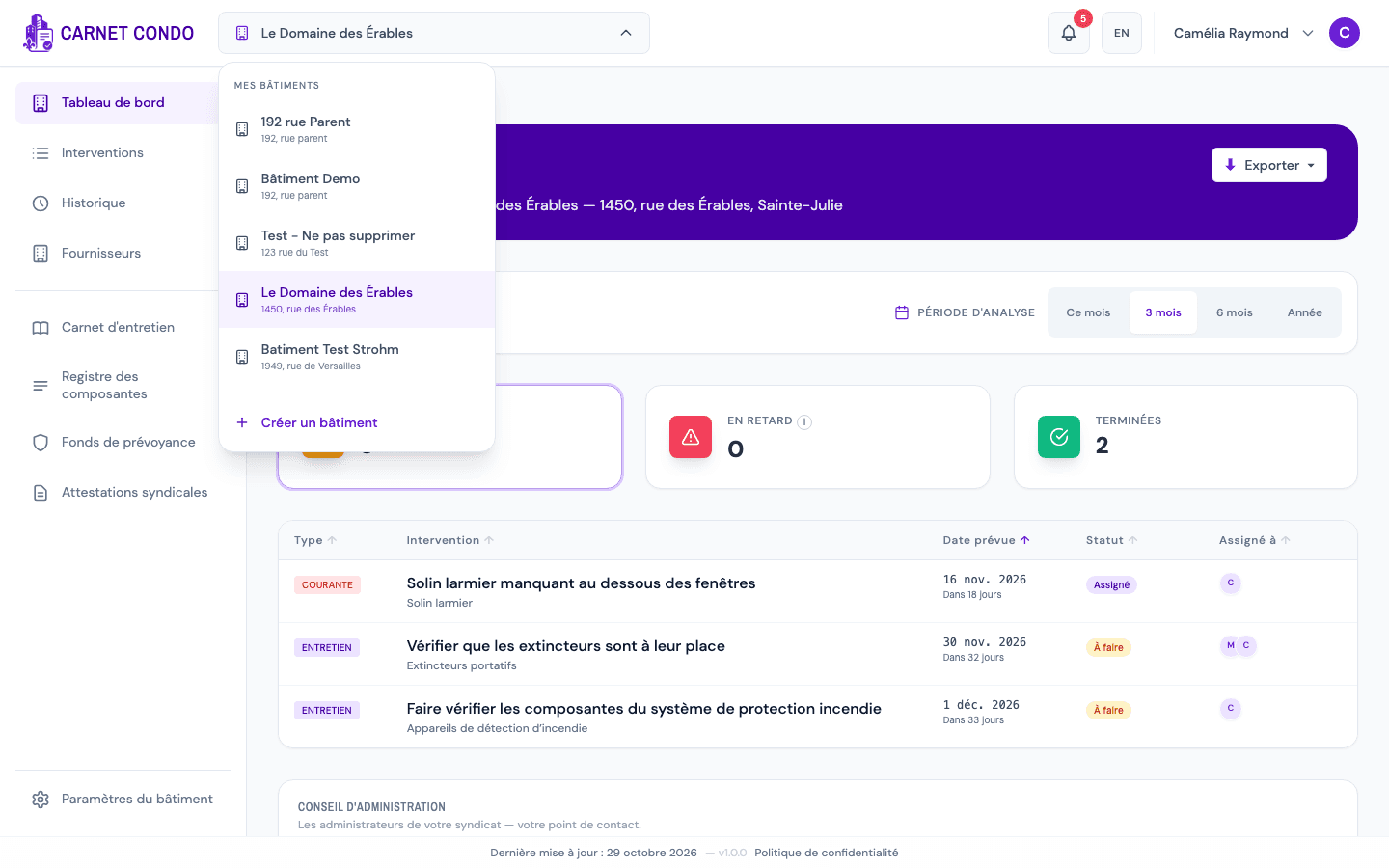
- In the header, click the button showing the active building's name (building icon + name + chevron). The drop-down menu opens.
- At the top of the menu, the "My buildings" label is followed by the list of your buildings (each one's name + address); the active building is highlighted.
- Click another building. The menu closes and the application switches to that building, keeping the current tab and reloading its data.
- At the bottom of the menu, separated by a divider, the "Create a building" entry opens the creation wizard.
Instant switch
Switching buildings is instant: no page reloads, only the chosen building's data is refreshed.
Tips and common errors
- The selector doesn't appear: if you have no active building, the header shows a "Create a building" button instead; start by creating one.
- Close the menu: click anywhere outside the menu to close it without switching buildings.
- Available everywhere: the selector is present in the header of every page once you're signed in.
- Unsaved changes: if a change has not been saved, the application first asks for confirmation: "Some changes are not saved. Leaving this page will lose them.". Click "Leave without saving" to switch buildings anyway, or cancel to go back and save.
- "Create a building" on a phone: from this menu, on a screen narrower than 1024 px, creation is blocked ("Desktop-only feature"). See Create a building.
See also
Request the data-entry service ($200)
Have the CARNET CONDO team transcribe your Law 16 documents into the app: where to find the request, what is sent, and what happens next.
Edit building information
Edit the building's name, address, cadastre, fiscal year, characteristics and amenities from Building settings.