
Building & team
Invite a member to the building (email + role)
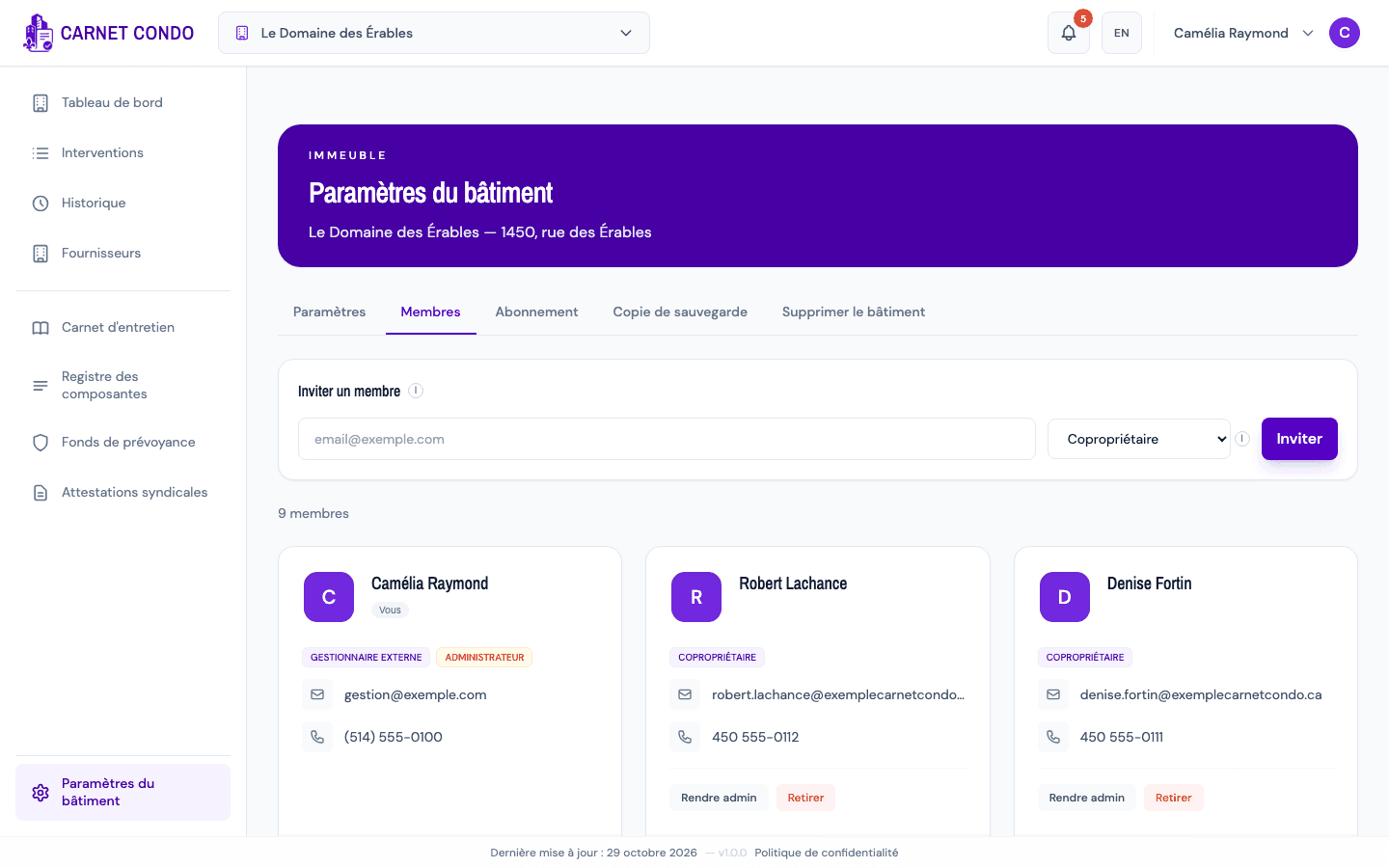
Invite someone to join your building by entering their email and choosing their role.
- Audience
- Administrator
- Screen
- Building settings, Members sub-tab → Invite a member
- Verified version
- App 1.0.0
Goal
Add someone to the building's team by sending them an invitation by email.
Audience
Administrator of the building.
Prerequisites
- Be an administrator.
- Know the email address of the person to invite.
Steps
- Open Building settings in the sidebar (at the very bottom, gear icon), then the Members sub-tab.
- In the "Invite a member" card (at the top), enter the person's email, then choose their role: President, Vice-president, Treasurer, Secretary, Administrator, Concierge, External manager or Co-owner (the default).
- Click Invite.
- Depending on the case:
- The person already has an account: they're added directly to the team and appear right away in the member list.
- New person: an invitation is created and an email is sent to them; they appear in the "Pending invitations" section.
The role isn't administrator access
The role describes the person's position in the syndicate. Administrator rights are given separately, after the invitation, with Make admin.
Tips and common errors
- Read-only access: if the subscription is overdue or canceled, the management actions are disabled (tooltip "Read-only access"). Settle the subscription in the Subscription sub-tab.
- Already a member: a message tells you the person is already part of the building.
- Invitation error (invalid email, quota reached, etc.): an error message appears.
- Email case: the address is converted to lowercase automatically.