
Follow the 5-step startup checklist
Understand the dashboard's "Start your logbook in 5 steps" card: what each step asks for, what checks it off automatically, and how to hide it.
- Audience
- Administrator
- Screen
- Dashboard › "Start your logbook in 5 steps" card
- Verified version
- App 1.0.0
Goal
Right after it is created, a building is empty. The startup checklist guides you through the 5 steps that make the logbook useful: inventory, maintenance plan, team, reserve fund and Law 16 documents. It shows what is done and takes you straight to what is left.
Audience
Building administrator. Non-administrator members do not see this card.
Prerequisites
- The building is created (see Create a building).
- At least one of the 5 steps is not done yet: the card disappears on its own once everything is complete.
Steps
-
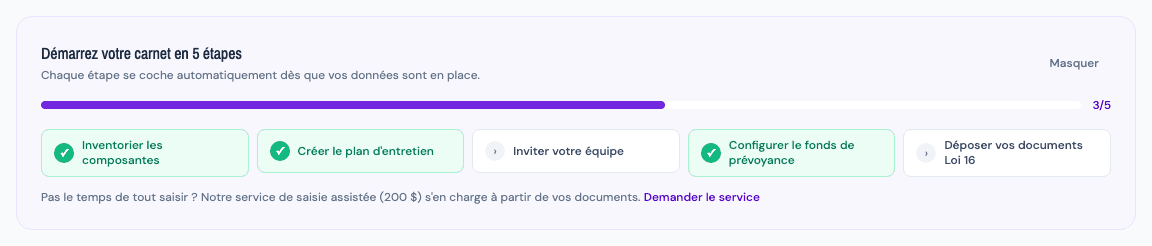
Open the Dashboard. Below the purple header, the "Start your logbook in 5 steps" card shows "Each step checks itself off as soon as your data is in place.", a progress bar and the number of completed steps (for example 3/5).
-
Check the state of each step:
- green with a check mark: the step is done; the box is no longer clickable;
- white with an arrow: the step is still to do; click it to open the section where you complete it.
-
Do the steps in the suggested order (each one feeds the next):
Step It is checked off when… Clicking takes you to Inventory the components the building has at least one component Component register Create the maintenance plan at least one maintenance task exists (deleted tasks do not count) Maintenance logbook Invite your team the building has at least two active members: you and one other person Building settings › Members Set up the reserve fund the fund settings are saved Reserve fund Upload your Loi 16 documents at least one Law 16 document is uploaded (fund study, insurance policy, minutes…) Syndicate attestations -
Come back to the Dashboard: the card recalculates the steps from your actual data and updates the progress.
-
When all 5 steps are done (5/5), the card disappears automatically.
Nothing to check off by hand
No step can be checked manually: the checklist reads what really exists in the building. If you delete the only component or the only Law 16 document, the matching step goes back to "to do".
Hide the checklist
Click "Hide", at the top right of the card. It no longer appears on this building's dashboard.
Hiding is remembered in your browser
The "Hide" choice is saved in the browser you are using, building by building. There is no button to show the card again. It only reappears if you open the app in another browser or device, or if the site's browsing data is cleared. While it is hidden, every step is still reachable directly from the menu.
Tips and common errors
- "Invite your team" is not checked after sending an invitation: a pending invitation does not count. The step is checked once the invitee has accepted and become an active member (see Invite a member).
- A step stays white although it is done: reload the dashboard; the card updates when it is displayed, not continuously.
- No time to enter everything? The "Request the service" link, below the steps, opens the assisted data-entry service (see Request the data-entry service).
- On a phone, the 5 steps stack one below the other; on a tablet, they show in two columns.