
Building & team
Delete a building (danger zone)
Permanently delete a building from the danger zone, with confirmation by typing its name.
- Audience
- Administrator
- Screen
- Building settings, Delete building sub-tab
- Verified version
- App 1.0.0
Goal
Permanently delete a building and all its associated data.
Audience
Administrator of the building.
Prerequisites
- Be an administrator.
- Be aware that this action is irreversible: there's no trash bin and no undo.
Steps
- In the sidebar, click Building settings, then the Delete building sub-tab (the last one).
- The "Danger zone" block (red frame) reminds you that all data will be lost.
- Click the red "Delete this building" button. A confirmation field appears: "To confirm, type the building name: …".
- Retype the exact building name. The Confirm deletion button stays disabled until the text matches exactly.
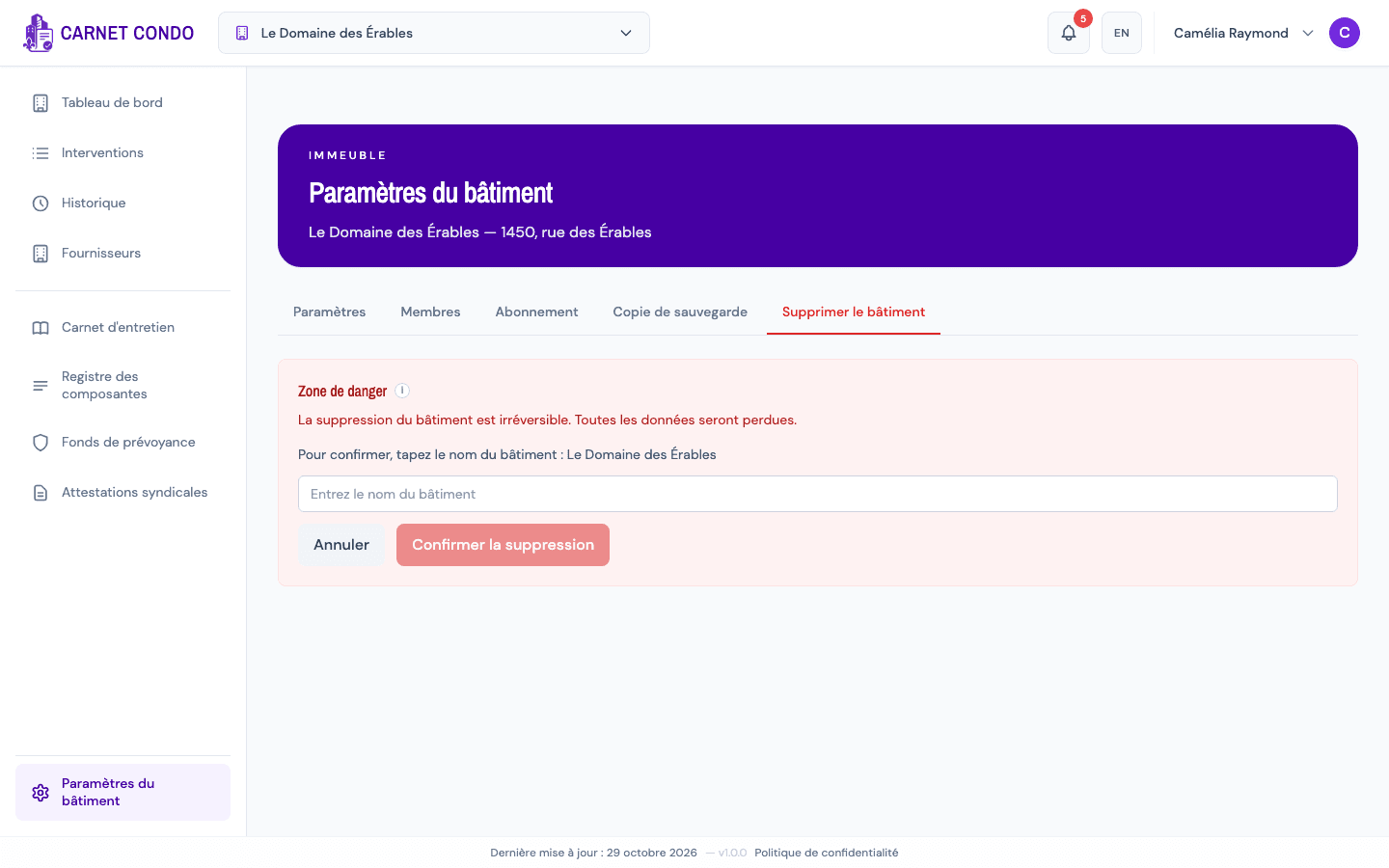
- Click Confirm deletion. The building and all its data (tasks, history, documents, members) are deleted.
Permanent and irreversible deletion
Unlike removing a member (reversible), deleting a building actually erases its data. Download a backup first if you want to keep a record.
Tips and common errors
- The button stays greyed out: check the name you typed (spaces, accents and capitalization must match exactly).
- Deletion failed: an error message appears and nothing is deleted; try again.
- Cancel: click Cancel or switch to another sub-tab to keep the building.