
Building & team
Reactivate a former member
Bring a former member back into the building's active team from the "Former members" section.
- Audience
- Administrator
- Screen
- Building settings, Members sub-tab → Former members
- Verified version
- App 1.0.0
Goal
Bring a member who had been removed back into the active team.
Audience
Administrator of the building.
Prerequisites
- Be an administrator.
- Have at least one former member (a removed member).
Steps
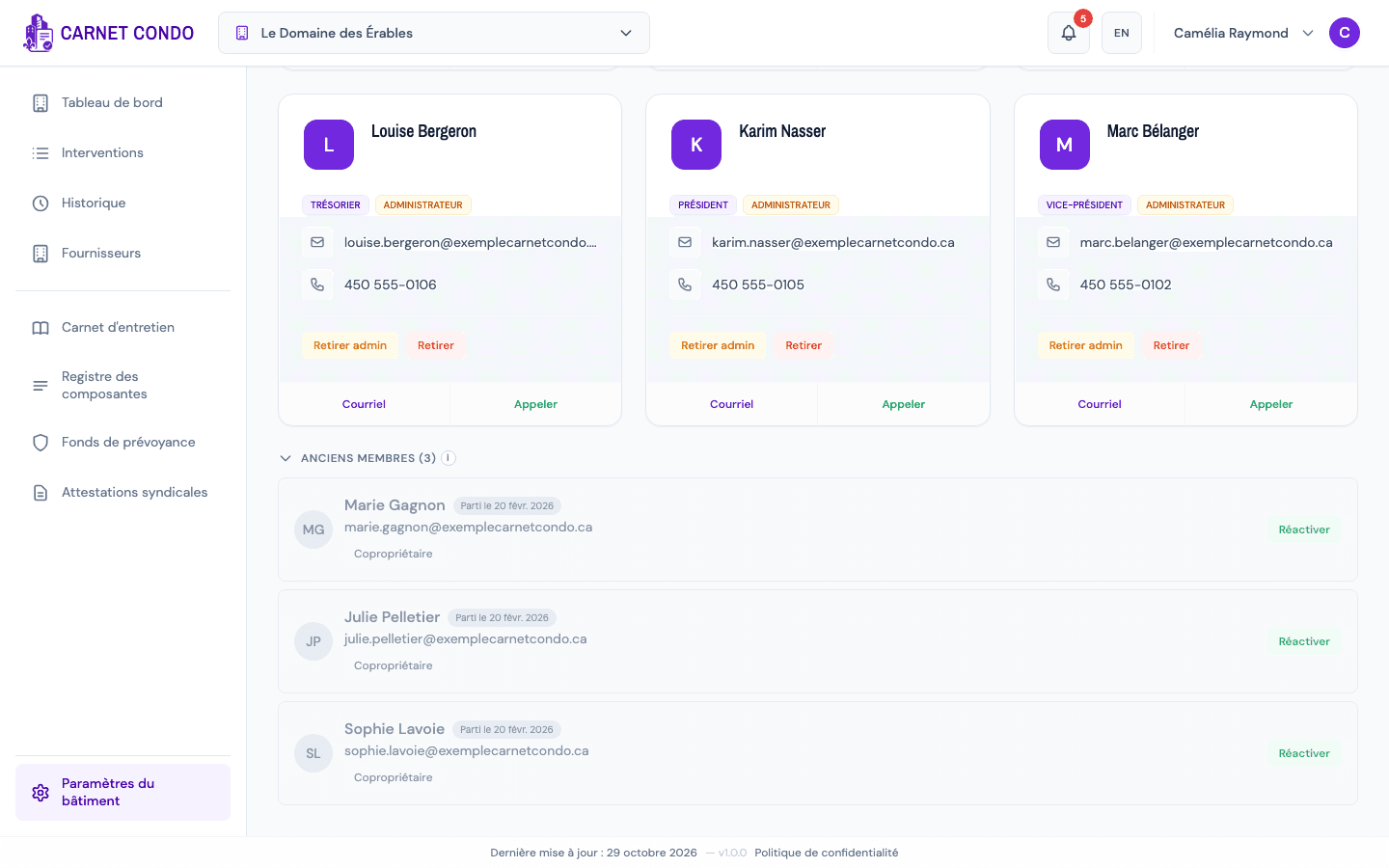
- Open Building settings in the sidebar (at the very bottom, gear icon), then the Members sub-tab.
- At the very bottom, click "Former members (N)" (collapsed by default) to expand it.
- Each former member is marked "Left on …".
- Click Reactivate. The member comes right back into the active list and a message confirms it.
Tips and common errors
- Missing section: it only appears if there's at least one removed member.
- Read-only access: if the subscription is overdue or canceled, the management actions are disabled (tooltip "Read-only access"). Settle the subscription in the Subscription sub-tab.
- Failure: an error message appears; try again.