
Building & team
Edit building information
Edit the building's name, address, cadastre, fiscal year, characteristics and amenities from Building settings.
- Audience
- Administrator
- Screen
- Building settings (sidebar), Settings sub-tab
- Verified version
- App 1.0.0
Goal
Update the building's information: name, address, cadastre, fiscal year, characteristics, amenities and notes.
Audience
Administrator of the building.
Prerequisites
- Be an administrator: the Building settings entry in the sidebar and the Save button are reserved for administrators.
Steps
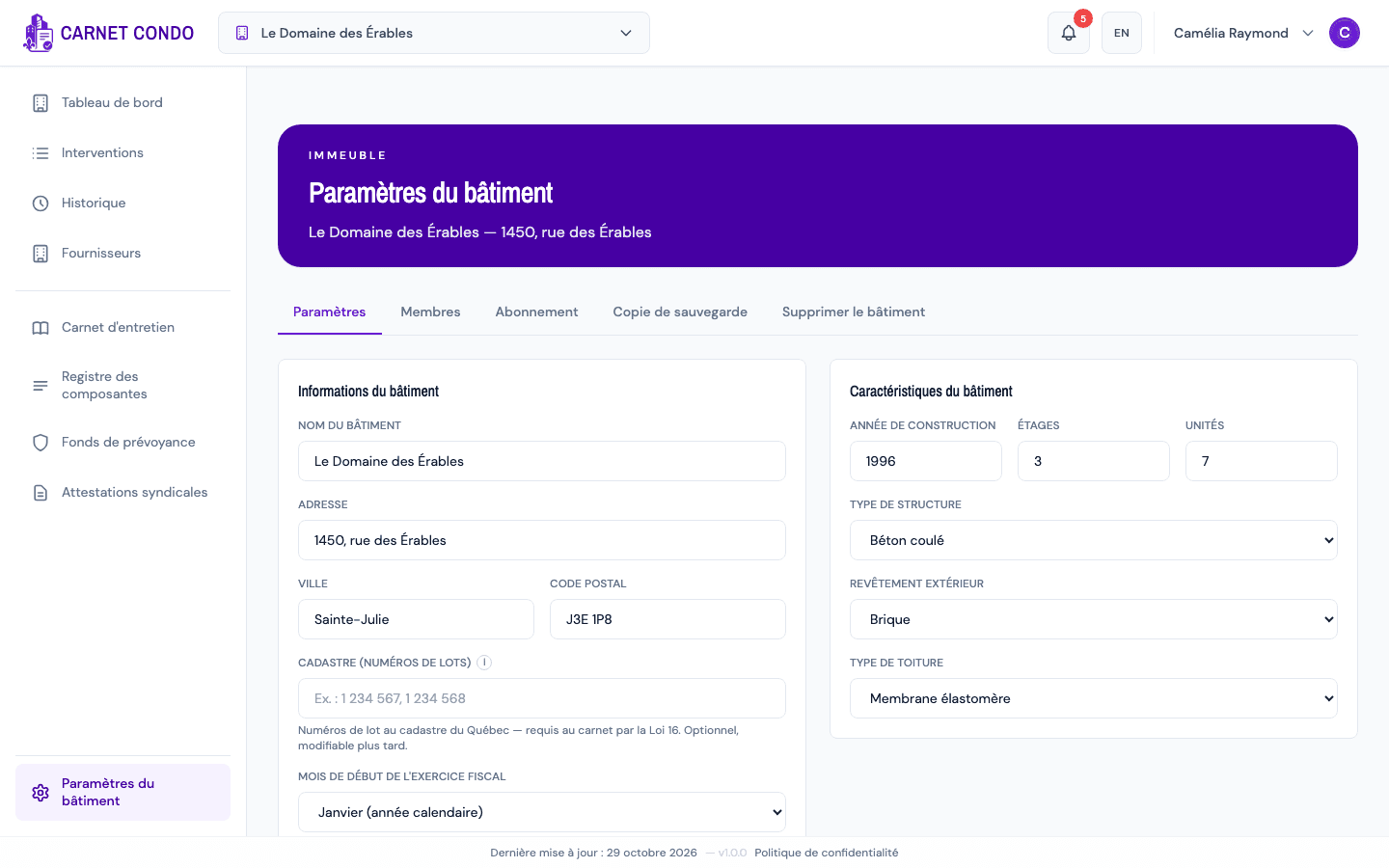
- In the sidebar, click Building settings (at the very bottom, gear icon). The page opens on the Settings sub-tab.
- The page's sub-tabs are: Settings, Members, Subscription, Backup and Delete building.
- In Settings, change what you need. Everything entered when the building was created can be edited:
- Building information: Building name, Address, City, Postal code, Cadastre (lot numbers) and Fiscal year start month;
- Building characteristics: Year built, Floors, Units, Structure type, Exterior cladding, Roof type;
- Amenities and equipment (checkboxes);
- General notes.
- Click Save at the bottom of the page. The message "Settings saved" appears; a new name shows up right away in the header.
Changing the fiscal year month has an impact
If you change the fiscal year start month, a panel warns you before you save: programmed contributions and special assessments will be re-interpreted under the new fiscal year. Check your reserve fund values after saving.
Tips and common errors
- Read-only access: if the subscription is overdue or canceled, the fields are disabled and Save is blocked. Settle it in the Subscription sub-tab.
- Cadastre: Loi 16 requires the building's Quebec cadastre lot numbers in the logbook. The field remains optional in the application: you can fill it in later.
- Postal code rejected: the message "Invalid postal code (expected format: A1A 1A1)." means the format is wrong; enter it as letter-digit-letter space digit-letter-digit.
- Save failed: an error message appears; check your connection and try again.