
Account & getting started
Complete your profile after an invitation
Finalize the creation of your account from an invitation link received by email.
- Audience
- Invited member
- Screen
- Sign-in page, "completion" mode
- Verified version
- App 1.0.0
Goal
Create your account and enter the application from an invitation sent by a manager.
Audience
Member invited to join a building.
Prerequisites
- Having received an invitation email containing a personal link.
Steps
-
Click the invitation link received by email. The application reads your invitation (a brief loading screen appears).
-
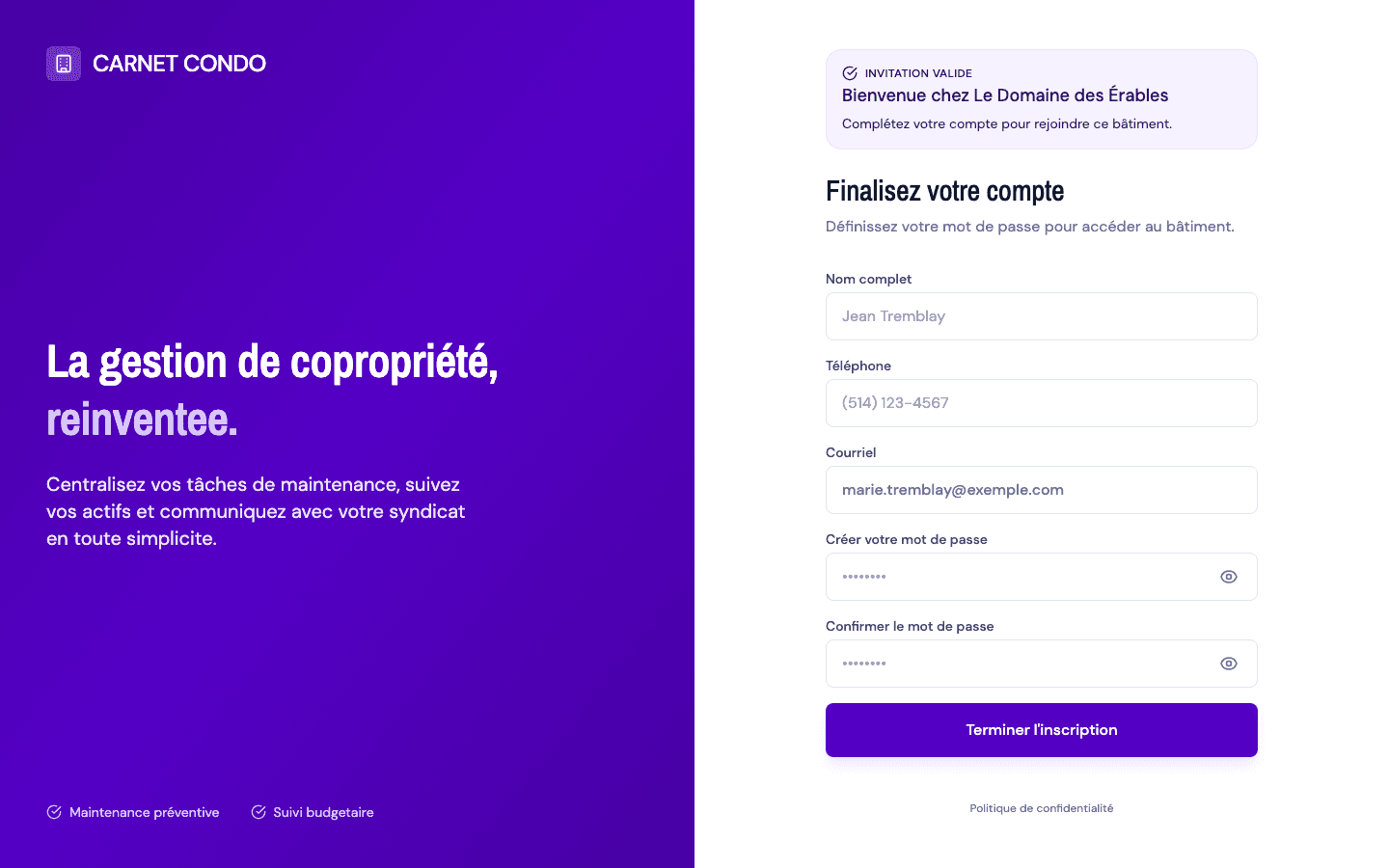
A contextual banner appears at the top of the form:
- Purple "Valid invitation" banner: new account; the view switches to "Finish your account", and your email is pre-filled and locked.
- Information banner: the address already has an account (simply sign in), or the invitation has already been used.
- Amber or red banner: the invitation is expired, replaced, cancelled or invalid; completion is blocked.
-
For a valid invitation, fill in Full name, Phone (optional), then Create your password and Confirm password.
-
Click Finish sign-up. Your account is created and your session opens immediately: no email confirmation is required here.
Email locked
Under an invitation, the email field is read-only: it matches the invited address and cannot be changed.
Tips and common errors
- Limited view switching: under an invitation, only the allowed state is active; you can't freely switch between account creation and sign-in.
- Invitation can't be completed (expired, cancelled…): submission is blocked and the banner explains why. Ask the manager for a new invitation.
- Don't confuse the invitation with the getting-started screen of an account without a building: these are two different paths.