
Account & getting started
Change your password (signed in)
Update your password while you're already signed in, from the My account window.
- Audience
- Everyone
- Screen
- "My account" window, Password section
- Verified version
- App 1.0.0
Goal
Replace your password when you're already signed in.
Audience
All signed-in users.
Prerequisites
- Being signed in and knowing your current password (it's required to confirm the change).
Steps
- Open the user menu, then My account.
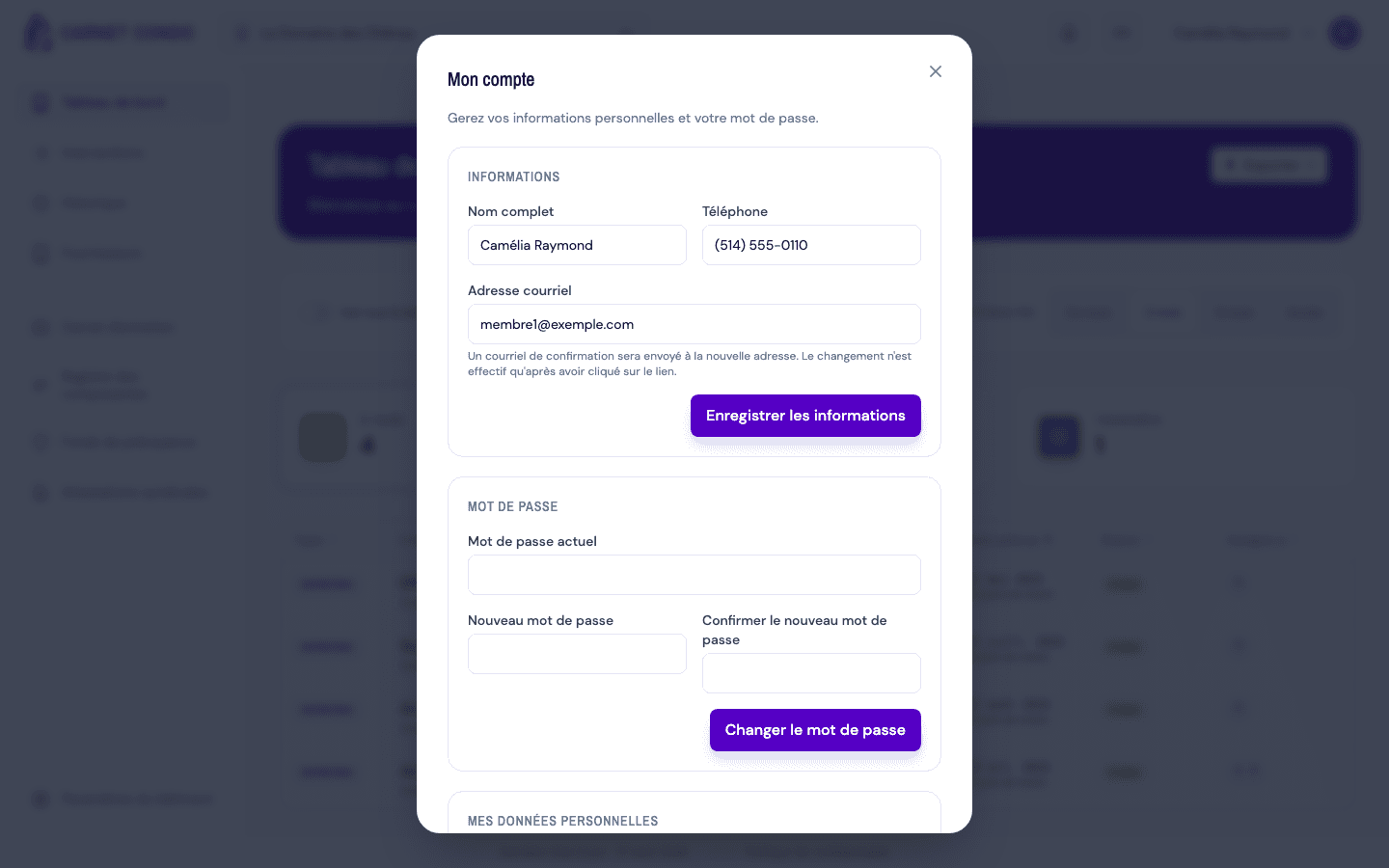
- Scroll down to the Password section: three fields appear: Current password, New password and Confirm the new password.
- Fill in the three fields, then click Change password.
- The application first verifies your current password, then applies the new one (your session stays active).
- On success, the fields clear and a message confirms "Password updated.".
Tips and common errors
- Current password missing or incorrect: a message appears under the field; the change isn't applied.
- New password too short: it must contain at least 6 characters.
- Confirmation differs: the "new" and "confirm" fields must be identical.
- This is the signed-in counterpart of link-based recovery: here, the old password is required. If you've forgotten it, use Forgot password instead.