
Switch the application to English (EN/FR button)
Display the application in English or in French with the EN/FR button in the top bar; the choice is remembered on this browser.
- Audience
- Everyone
- Screen
- Top bar (any signed-in page)
- Verified version
- App 1.0.0
Goal
Use the application in English, or go back to French. Each member chooses their own language: it changes nothing for the other members of the building.
Audience
All signed-in users.
Prerequisites
- Be signed in.
Steps
-
In the top bar, find the small square button between the notification bell and your name. It shows the language it switches to:
- EN when the application is in French;
- FR when it is in English.
-
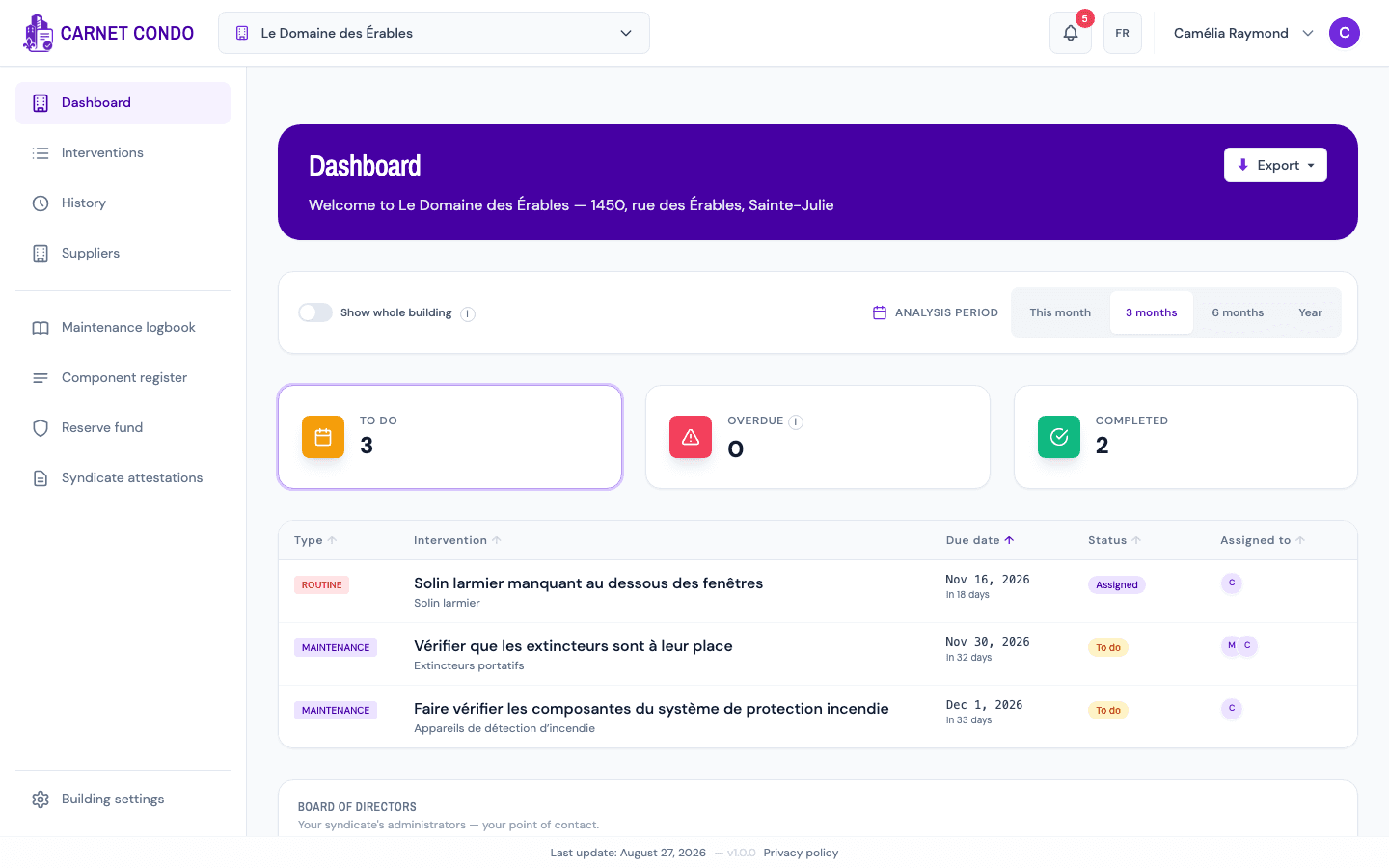
Click EN. The whole interface switches to English right away, without reloading the page: menu (Dashboard, Interventions, History…), buttons, filters, messages and dates.
-
To go back to French, click FR in the same place.
What is not translated
Only the interface changes language. What you and your team entered (task titles, descriptions, notes, comments, component names) stays in the language it was written in. In the screenshot above, the tasks therefore stay in French.
Tips and common errors
- Choice remembered on this browser: the application opens in the chosen language on your next visit, including the sign-in screen. On another device or browser, it opens in French until you click EN there.
- Exports follow the language: an Excel or PDF export started while the application is in English has its titles and columns in English.
- On a phone: the button is also in the top bar, next to the bell.
See also
Change your password (signed in)
Update your password while you're already signed in, from the My account window.
Read the privacy policy and the trackers notice
Find the application's privacy policy, know what it contains (information collected, purposes, retention, rights, transfers outside Quebec, officer) and understand the trackers banner.