
View and edit a major repair
Open a major repair's record and switch to edit mode; the estimated cost is admin-only.
- Audience
- Administrator or assigned person
- Screen
- Major repair record
- Verified version
- App 1.0.0
Goal
View a major repair's information, then switch to edit mode to correct it (title, status, component, dates, costs, notes…).
Audience
Administrator or assigned person. The "Current estimated cost" can only be changed by an administrator.
Prerequisites
- A major repair exists (see Plan a major repair or replacement).
Steps
-
In "Maintenance logbook" › "Major repairs & replacements", click a row. The record opens on the "Information" tab, in read mode.
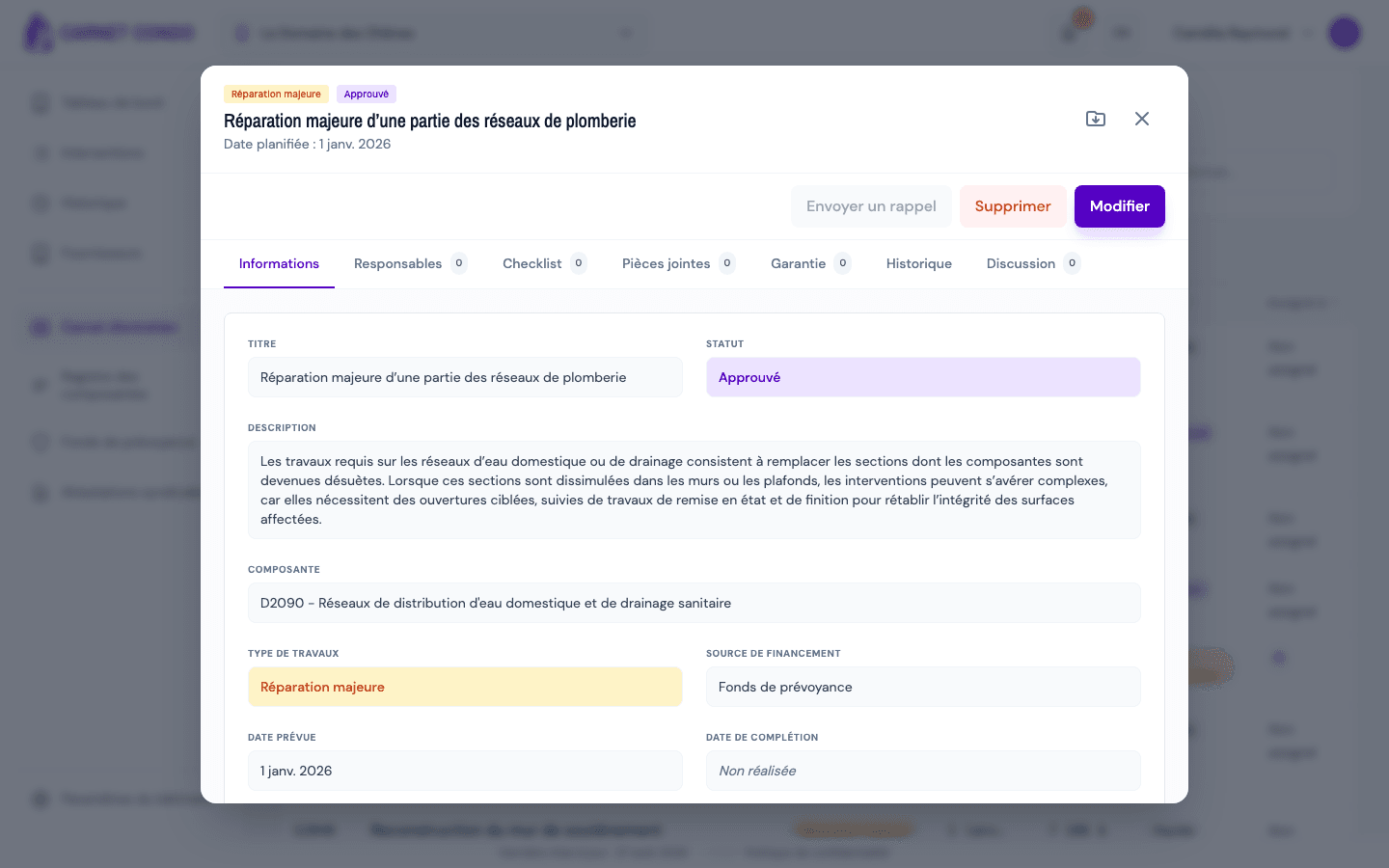
The header shows the type and status badges, the title and the "Planned date". The Information tab shows: Title, Status, Description, Component, Work type, Funding source, Planned date, Completion date, Current estimated cost, Actual cost, Supplier and Notes.
-
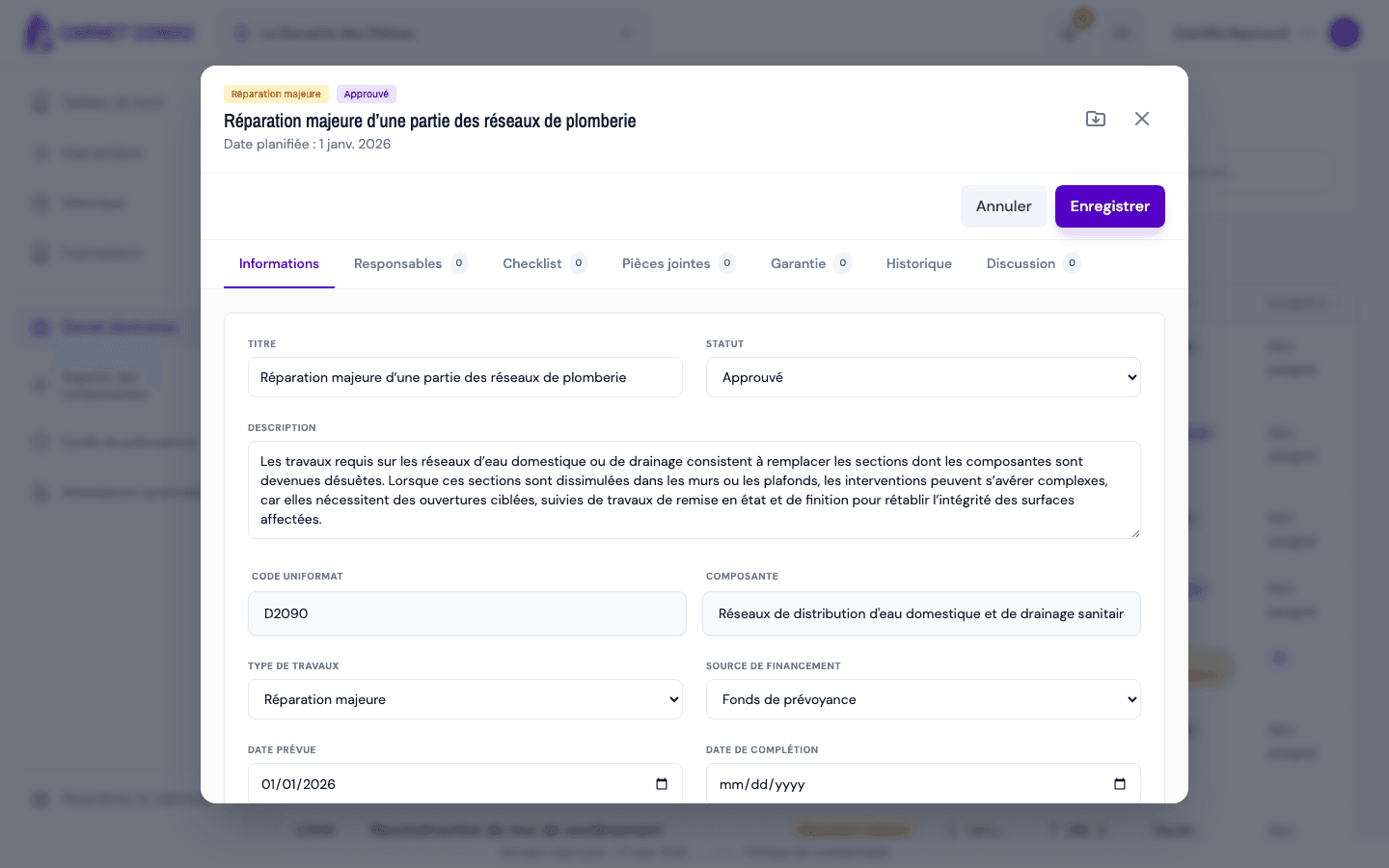
Click "Edit". The fields become editable and "Cancel" and "Save" replace the read-mode buttons.
-
Change the fields you need, then click "Save". The message "The work has been saved." appears.
7 tabs
The record groups Information, Assignees, Checklist, Attachments, Warranty, History and Discussion. See Checklist, attachments, history and discussion and Add a warranty.
Tips and common mistakes
- Estimated cost: an assigned person who is not an administrator sees the estimated cost but cannot change it. They can enter the actual cost, completion date and completion note.
- Fields that depend on the status: "Postponed to year" and "Postpone reason" for Postponed, "Completion note" for Completed.
- Unsaved changes: an orange dot on the Information tab flags them; when you close the record, the app offers to discard them.
See also
Plan a major repair or replacement
Create a major repair or a replacement planned over the building's life cycle, tied to a component, with its estimated cost and funding source.
Change the status / force a completed status
Move a major repair through its life cycle, postpone it, or correct a Completed status set by mistake with a logged reason.